How to Self-Host OpenClaw on a VPS with Ollama, Docker & Security Setup
Running an AI assistant on your own infrastructure gives you greater control over data, configuration, performance, and access. Instead of relying entirely on a hosted platform, you can self-host OpenClaw on a Linux VPS and connect it to either cloud-based AI providers or a locally running model through Ollama. For many users, OpenClaw on a VPS provides a practical balance between affordability, remote accessibility, and infrastructure control.
This guide explains how to self-host OpenClaw using Docker, connect it to Ollama, and apply a reliable VPS security configuration. The recommended environment is Ubuntu 24.04 LTS, although the general architecture can also work on other supported Linux distributions. OpenClaw’s current documentation specifically supports running its Gateway on Linux servers and cloud VPS instances, while recommending that the Gateway remain private whenever possible.
Why Self-Host OpenClaw on a VPS?
The biggest advantage of self-host OpenClaw is control. Your Gateway, configuration, workspace, credentials, and automation environment can remain under your administration rather than being tied to a third-party hosted interface.
With OpenClaw on a VPS, you can keep the service running continuously, even when your personal computer is turned off. You can then connect to it from a laptop, smartphone, SSH session, or private network. OpenClaw’s own hosting documentation describes the VPS as the source of truth for the Gateway state and workspace and recommends regular backups.
A VPS is also useful when you want to combine Docker with Ollama. Docker can isolate application components and make deployment and upgrades more predictable, while Ollama can provide access to locally hosted models without requiring every request to be sent to an external AI API.
However, self-hosting an AI agent is not simply a matter of installing software and opening a port. An AI agent can potentially access files, execute tools, interact with websites, or communicate through messaging channels. Therefore, VPS security must be treated as part of the installation rather than an optional step.
What You Need Before Installing OpenClaw
For a basic OpenClaw on a VPS deployment that uses an external model API, a modest VPS can be sufficient. A configuration with around 2 vCPUs and 4 GB of RAM can be a reasonable starting point for a lightweight Gateway, although actual requirements depend on the enabled tools, channels, workloads, and additional services.
If you plan to run Ollama on the same server, RAM becomes much more important. The model itself, Ollama, OpenClaw, Docker containers, the operating system, and background services all compete for system resources. A VPS with 8 GB of RAM is a more practical starting point for smaller local models, while 16 GB provides considerably more headroom. The exact model size and quantization should determine your final hardware choice rather than assuming that every local model has identical requirements.
For self-host OpenClaw, prepare the following:
- Ubuntu 24.04 LTS or another supported Linux distribution
- A VPS with sufficient CPU, RAM, and disk space
- SSH access
- A domain name if you intend to use a public HTTPS endpoint
- Docker Engine and Docker Compose
- Ollama if you want local model inference
- A strong authentication secret
- A firewall configured according to your actual services
Docker officially provides installation instructions for Ubuntu 24.04 LTS and recommends installing Docker Engine from its official repository rather than relying on potentially conflicting distribution packages. The current Docker documentation lists Ubuntu 24.04 among its supported releases and includes the Compose plugin in the recommended installation packages.
Step 1: Prepare and Secure the VPS
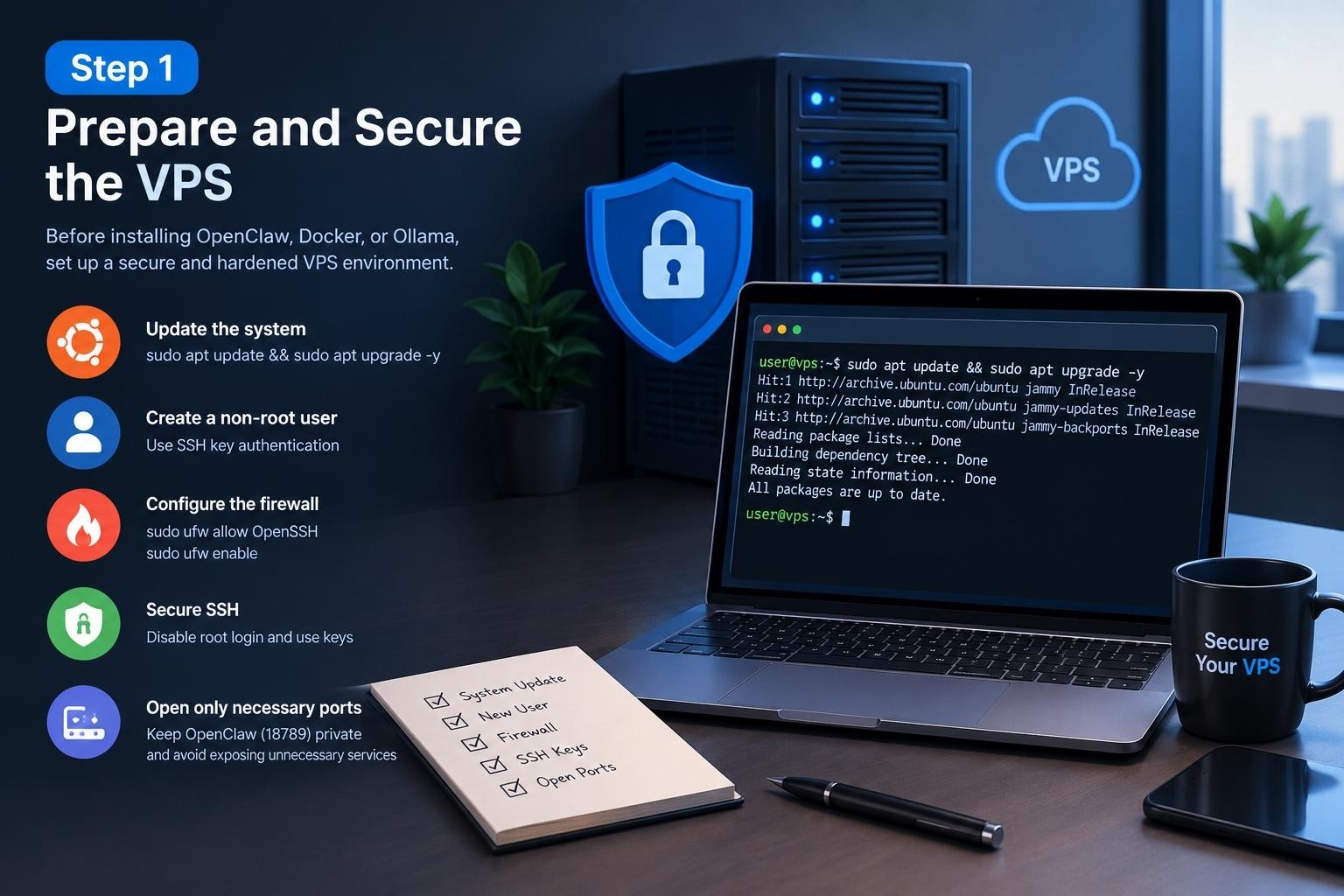
Before installing Docker, OpenClaw, or Ollama, update the server:
sudo apt update && sudo apt upgrade -y
Create a dedicated non-root administrative user and configure SSH key authentication. Avoid performing normal production administration through the root account. You should also make sure that your SSH configuration is protected before exposing additional services to the internet.
A basic firewall can then be configured with UFW. For example:
sudo ufw allow OpenSSHsudo ufw enablesudo ufw status
Do not automatically open every application port. One of the most important principles of VPS security is to expose only the services that genuinely need to be reachable from outside.
This is particularly important for OpenClaw on a VPS. The current OpenClaw documentation identifies port 18789 as the default Gateway port and recommends keeping the Gateway bound to loopback whenever possible. If remote access is required, OpenClaw recommends approaches such as an SSH tunnel or Tailscale rather than exposing the Gateway directly to the public internet.
Step 2: Install Docker for OpenClaw
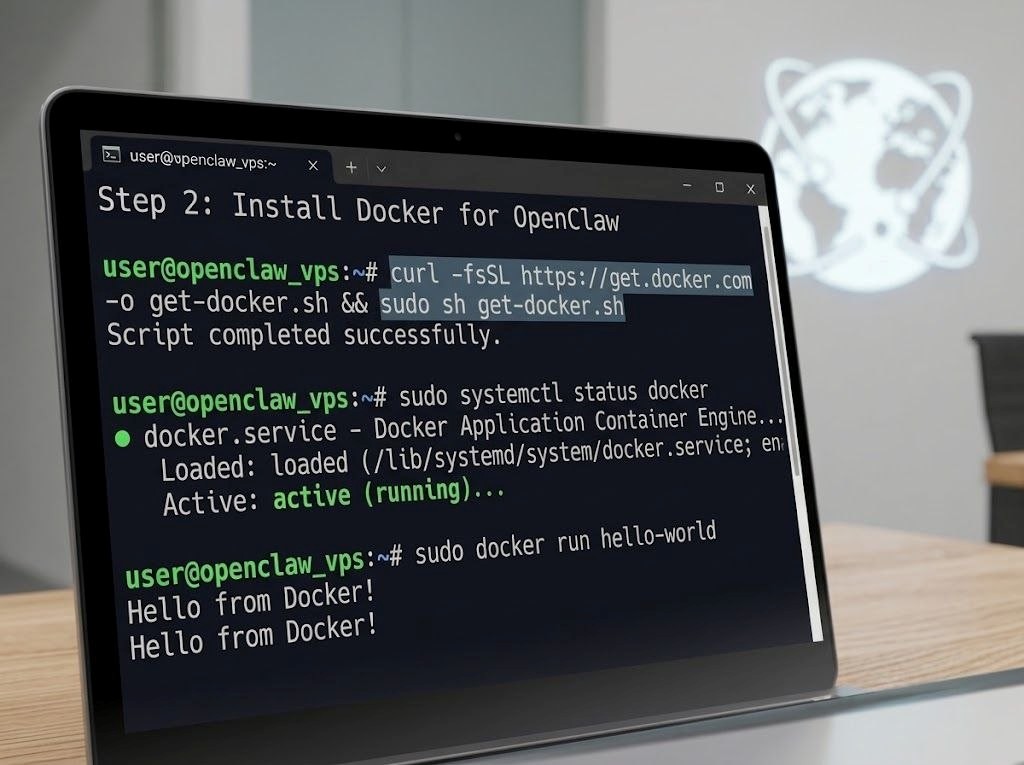
Once the operating system has been hardened, install Docker from Docker’s official repository. After installation, verify that the service is running:
sudo systemctl status docker
Then test the installation:
sudo docker run hello-world
The official Docker documentation uses the hello-world image as a basic verification step after installation.
Using Docker makes the deployment easier to reproduce and separates OpenClaw’s runtime from many host-level dependencies. OpenClaw’s current Docker documentation supports Docker Engine with Docker Compose v2 and provides an official container workflow. The documentation also warns that public VPS deployments require additional attention to network exposure and Docker firewall behavior.
At this stage, the objective is not simply to get self-host OpenClaw working as quickly as possible. The objective is to establish a clean foundation where the application, local model service, credentials, firewall, and remote-access method can be controlled independently.
Step 3: Decide How Ollama Will Be Used
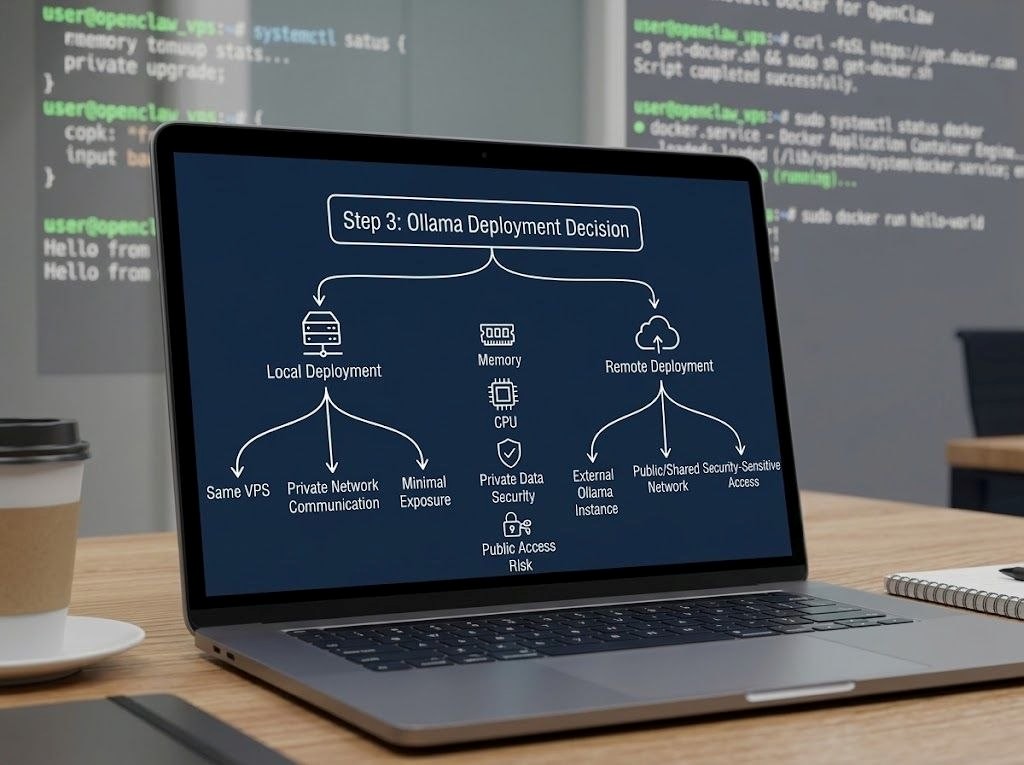
The next architectural decision is whether Ollama will run locally on the same VPS or whether OpenClaw will connect to an Ollama instance elsewhere.
For a fully self-contained setup, running Ollama on the VPS can be attractive because OpenClaw and the model service communicate over the private server network. OpenClaw’s current Ollama integration supports local and private-network Ollama endpoints without requiring a normal bearer token, while remote public Ollama hosts require appropriate credentials.
The important point is that Ollama should not be treated as a reason to expose another unnecessary public port. Keep internal services on private interfaces or Docker networks whenever possible.
OpenClaw’s current setup flow can discover supported Ollama models and lets you select a model through commands such as:
openclaw models listopenclaw models set ollama/gemma4
The exact model you choose should depend on your VPS’s available memory, CPU performance, workload, and desired response quality.
Security Should Come Before Public Access
A common mistake when people self-host OpenClaw is to focus first on functionality and only later think about security. The safer approach is the opposite: establish authentication, network restrictions, and access policies before making the service remotely accessible.
OpenClaw provides a built-in security audit that can identify problems involving Gateway authentication, network exposure, weak credentials, tool permissions, plugins, filesystem permissions, and other security-sensitive settings. Running:
openclaw security audit
and, for a deeper review:
openclaw security audit --deep
should become part of the deployment process.
The current OpenClaw security guidance recommends keeping the Gateway on loopback whenever possible, using authentication when a broader bind is necessary, limiting messaging access with pairing or allowlists, and restricting high-risk tools when agents can receive untrusted content.
This approach turns VPS security from a collection of optional tweaks into a structured part of the architecture.
Step 4: Configure OpenClaw with Docker Compose
After installing Docker and preparing the VPS, the next stage is to deploy OpenClaw on a VPS in a controlled and reproducible environment. OpenClaw’s current Docker workflow uses Docker Compose v2 and can either build the image locally or use an official pre-built image. For smaller VPS instances, using a pre-built image can avoid the additional memory requirements associated with building the image locally. OpenClaw’s documentation currently recommends official images from GitHub Container Registry or Docker Hub rather than unofficial mirrors.
Clone the official repository:
git clone https://github.com/openclaw/openclaw.git
cd openclaw
Then verify that both Docker and Docker Compose are available:
docker --version

docker compose version
Before starting the containers, create a persistent location for OpenClaw configuration and workspace data. Persistence is important because deleting and recreating a container should not mean losing your configuration, authentication profiles, workspace files, or other application state.
For a production deployment, keep sensitive environment variables outside publicly accessible directories and make sure .env files are protected:
chmod 600 .env
Never commit API keys, Gateway tokens, Telegram credentials, or other secrets to a public Git repository.
The official Docker setup can perform onboarding automatically, including generating a Gateway token and storing it in .env. After the container starts, the Control UI is normally available through the local Gateway address:
http://127.0.0.1:18789/
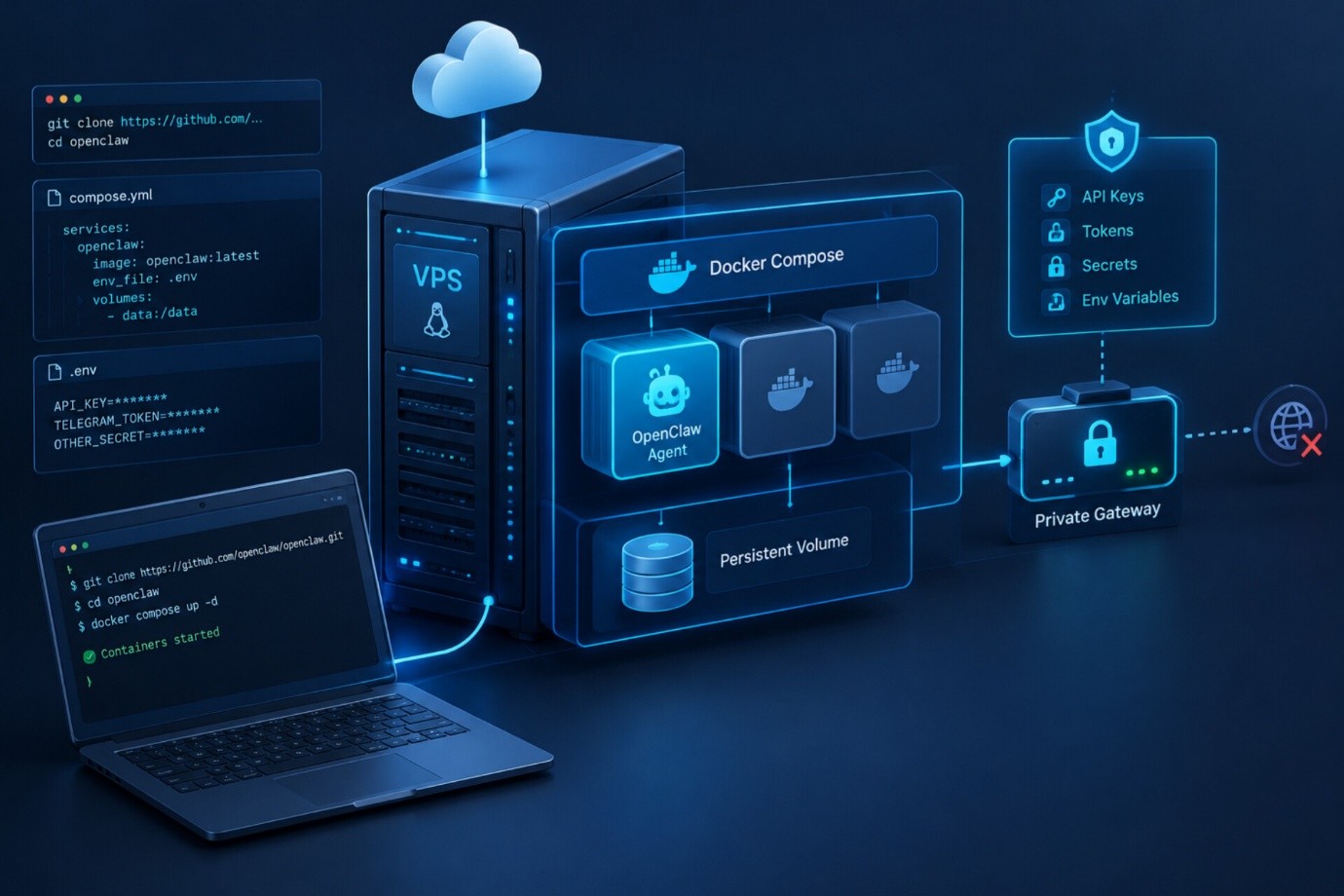
The important security detail is that this address should not automatically become a public internet endpoint. OpenClaw’s current documentation recommends keeping the Gateway private and using controlled access methods when remote administration is required.
Step 5: Connect OpenClaw to Ollama
One of the most useful combinations for self-host OpenClaw is OpenClaw plus Ollama. Ollama provides a convenient way to run supported language models locally, while OpenClaw acts as the agent layer that manages interactions, tools, channels, and workflows.
The architecture can look like this:
Internet / Private Network | SSH / VPN | Ubuntu VPS | Docker / Compose | | OpenClaw Ollama | | +—- Local Model
Keeping Ollama inside the private server or Docker network has an important security advantage: the model API does not need to be exposed directly to the public internet.
After installing and configuring Ollama, verify that it is running correctly and download an appropriate model. The model should be selected according to the available RAM and CPU resources rather than simply choosing the largest model available.
For example, after installing Ollama, you can inspect available models through its normal command-line workflow. OpenClaw can then be configured to use an Ollama model as its provider. OpenClaw’s current documentation supports Ollama as a provider and provides model discovery and selection commands.
For a smaller VPS, begin with a relatively lightweight model. If the system constantly uses swap memory, becomes unresponsive, or takes an excessive amount of time to generate responses, the problem may be insufficient hardware rather than an OpenClaw configuration problem.
This is why choosing the VPS based on the intended workload is an important part of VPS hardening and performance planning. A server that barely has enough memory to boot the operating system should not simultaneously be expected to run Docker, OpenClaw, Ollama, a large language model, monitoring software, and a reverse proxy.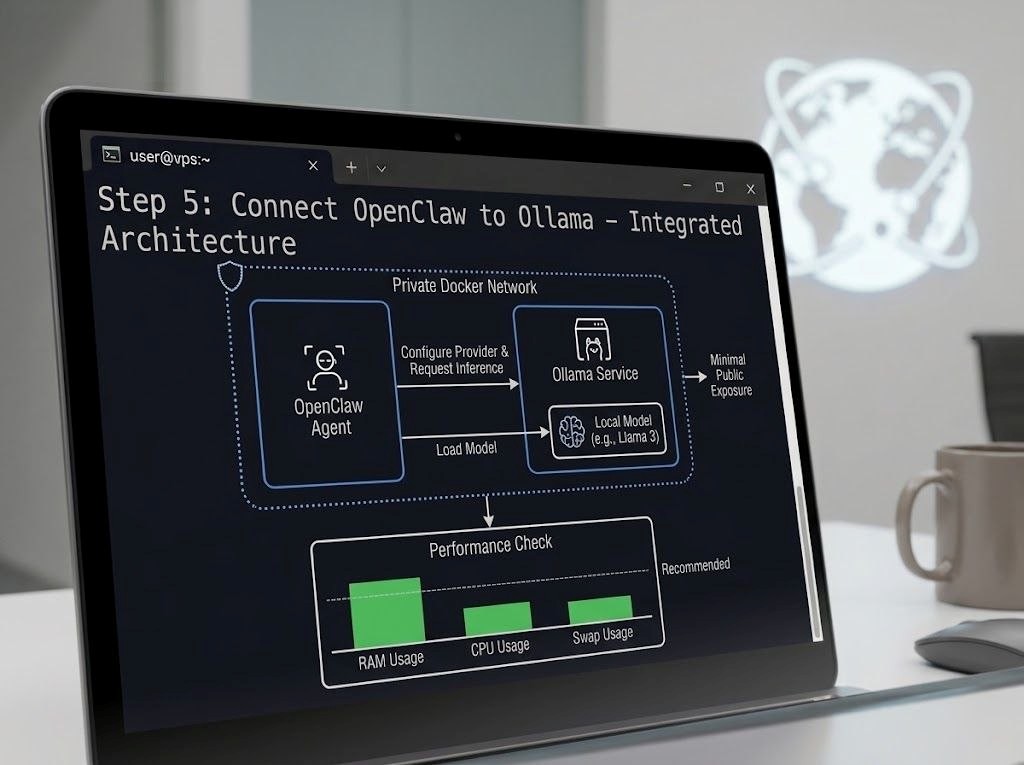
Step 6: Create a Secure VPS Architecture
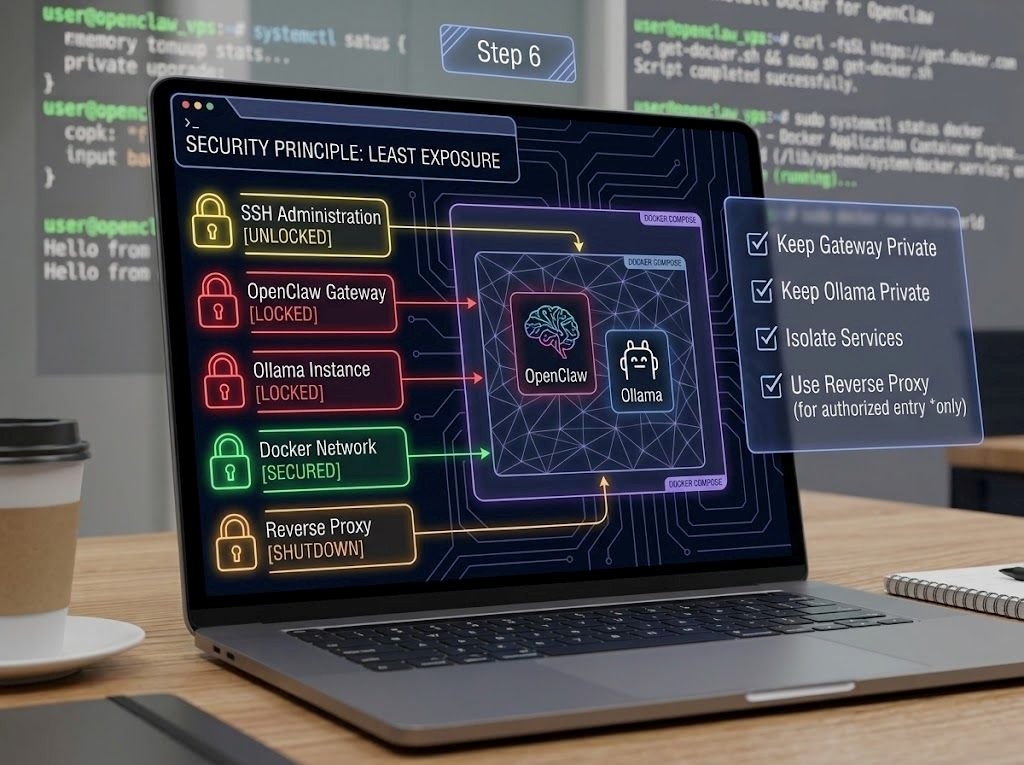
A production-ready OpenClaw on a VPS installation should follow the principle of least exposure.
The safest architecture is generally:
- SSH available for administration
- OpenClaw Gateway kept private
- Ollama kept private
- Docker services connected through internal networks
- Only genuinely required public ports exposed
- Authentication enabled
- Messaging channels protected with allowlists or pairing
- Regular backups maintained
For example, if you use an SSH tunnel, you can access the Gateway from your local computer without exposing port 18789 publicly:
ssh -L 18789:127.0.0.1:18789 user@YOUR_SERVER_IP
You can then access the Control UI through your local browser while the Gateway remains inaccessible to random internet scanners.
This approach is strongly aligned with the current OpenClaw security recommendations. The official VPS guidance specifically advises against directly exposing the Gateway port to the public internet and recommends restricted firewall rules, SSH access, or a private networking solution.
Step 7: Use a Reverse Proxy Only When You Actually Need One
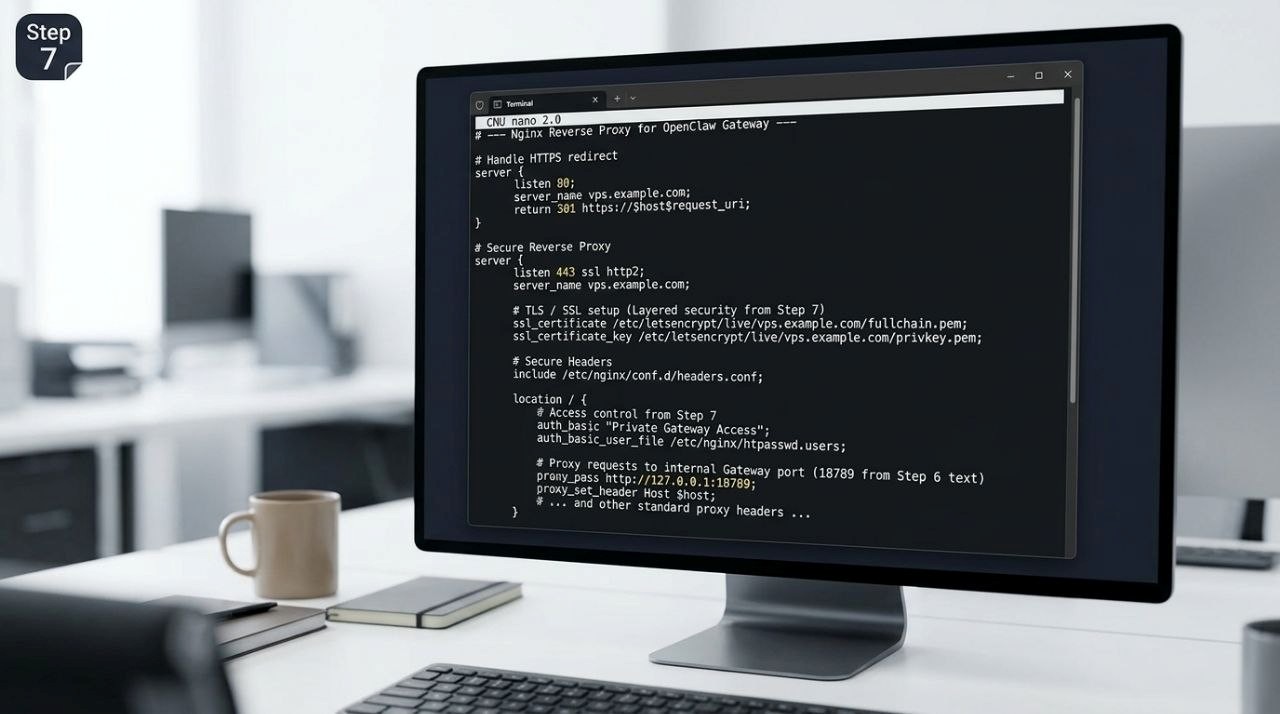
If you need public HTTPS access, place a properly configured reverse proxy in front of OpenClaw instead of simply opening the Gateway port.
A common architecture is:
HTTPS |Nginx / Reverse Proxy |OpenClaw Gateway |Ollama / External AI Provider
A reverse proxy can handle TLS certificates, HTTPS redirects, request filtering, and additional access-control mechanisms.
However, HTTPS does not automatically make an AI agent secure. Encryption protects traffic in transit, but authentication, authorization, tool permissions, channel restrictions, and filesystem access still require separate controls.
Therefore, secure VPS configuration should be considered a layered process rather than a single SSL installation.
If you use Nginx, obtain a certificate from a trusted certificate authority such as Let’s Encrypt and configure automatic renewal. Also consider security headers and strict access rules appropriate to your deployment.
Most importantly, do not configure the reverse proxy as a simple unrestricted gateway that forwards every request to OpenClaw. Public access should have a clear purpose and appropriate authentication.
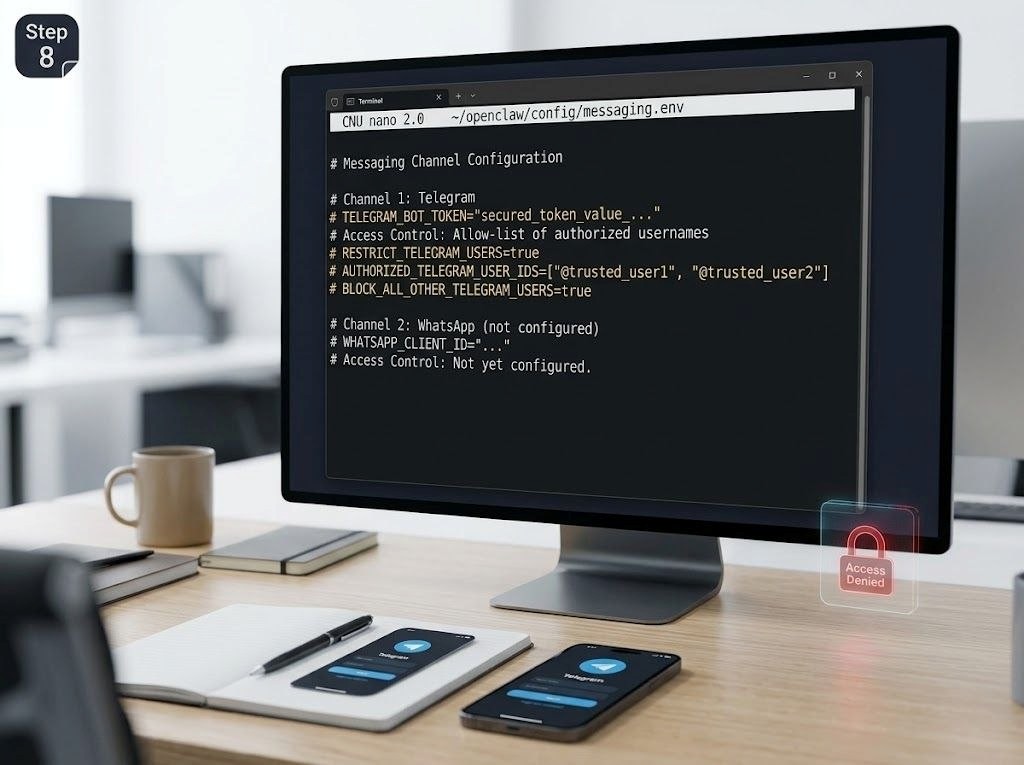
Step 8: Configure Messaging Channels Carefully
One of the most attractive features of self-host OpenClaw is the ability to interact with the agent through supported messaging channels. Depending on your configuration, this can allow you to use OpenClaw from a phone instead of logging into the VPS every time.
But messaging integration introduces another security boundary.
If an attacker can communicate with your bot, they may potentially attempt prompt injection, social engineering, malicious tool requests, or unauthorized commands. For this reason, OpenClaw’s security guidance emphasizes access control for messaging channels and careful handling of untrusted content.
For a personal deployment, restrict access to known accounts whenever the selected channel supports it. Do not assume that hiding the bot username is an adequate security mechanism.
A useful VPS security checklist should therefore include:
- Restrict SSH access.
- Use SSH keys instead of password authentication where possible.
- Enable a firewall.
- Keep OpenClaw’s Gateway private unless public access is genuinely required.
- Keep Ollama private.
- Protect .env and credential files.
- Use strong Gateway authentication.
- Restrict messaging users.
- Run OpenClaw’s security audit regularly.
- Keep Docker images and OpenClaw updated.
Step 9: Run the OpenClaw Security Audit
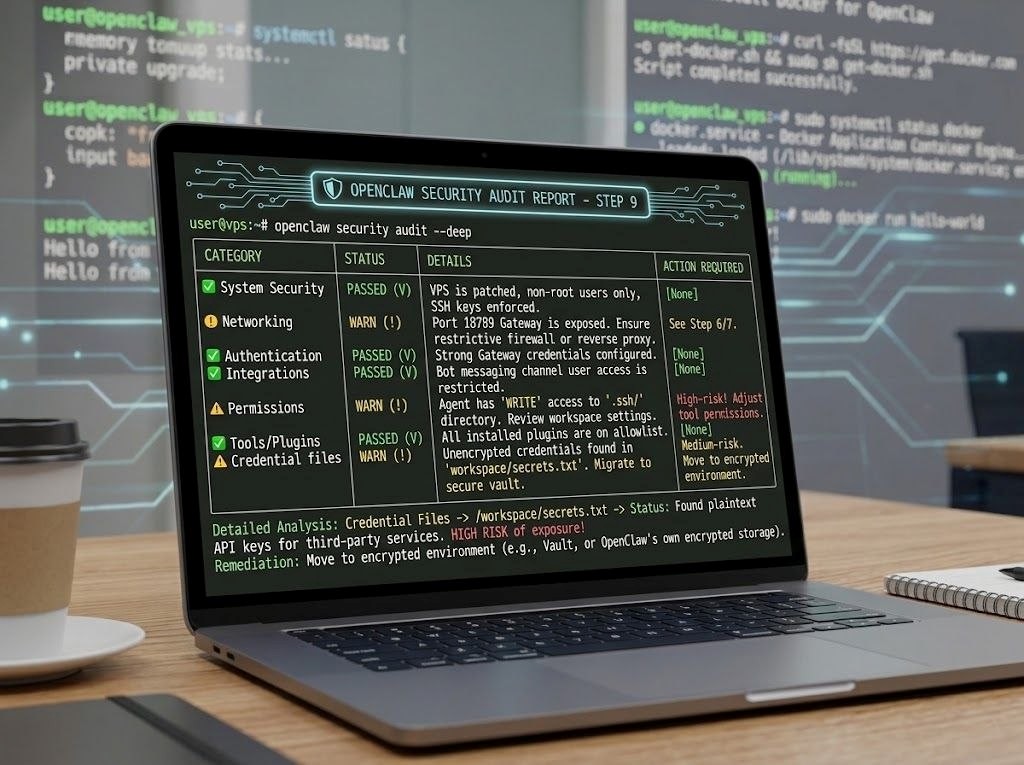
Once the deployment is operational, run:
openclaw security audit
For a deeper inspection:
openclaw security audit –deep
The audit is particularly valuable after changing networking, installing plugins, adding channels, or giving the agent additional tools.
A good VPS security checklist should not be considered complete simply because UFW reports that it is active. Firewall protection is only one layer. OpenClaw itself may have permissions, credentials, tools, integrations, and workspace access that deserve independent review.
For example, if your agent can access sensitive files, giving it broad filesystem permissions can undermine otherwise strong network security. Likewise, an allowlisted messaging account should still not automatically receive unrestricted access to every powerful tool.
Step 10: Verify the Deployment Before Production Use
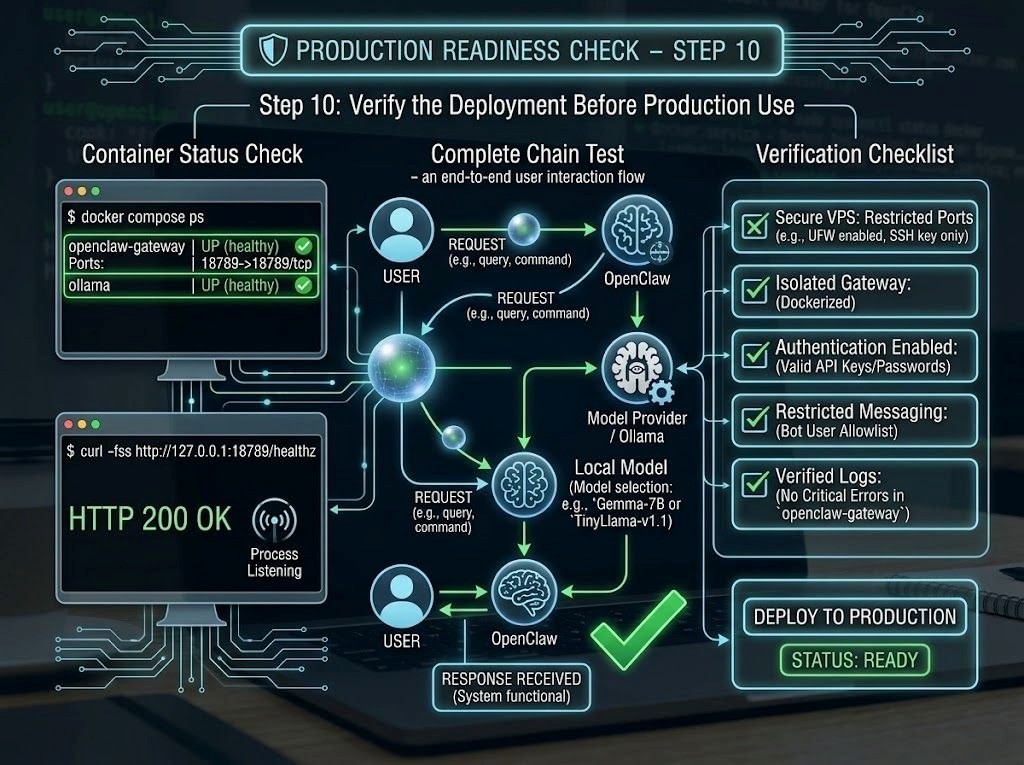
After starting the containers, inspect their status:
docker compose ps
Then review the Gateway logs:
docker compose logs --tail=100 openclaw-gateway
The current OpenClaw Docker runtime also provides a health endpoint that can be checked locally:
curl -fsS http://127.0.0.1:18789/healthz
A successful HTTP response indicates that the Gateway process is listening and responding.
At this point, test the complete chain rather than testing only whether the container is running:
User → OpenClaw → Model Provider → Response
If you are using Ollama, also verify:
User → OpenClaw → Ollama → Local Model → OpenClaw → User
This distinction matters because a running Docker container does not necessarily mean that the AI model, authentication system, messaging channel, and Gateway are all functioning correctly.
A reliable secure VPS deployment should therefore be tested layer by layer before it is exposed to real users or connected to sensitive tools.
Step 11: Optimize OpenClaw, Ollama, and Docker for VPS Performance
Once the basic deployment works, the next objective is to make OpenClaw on a VPS stable enough for continuous use. A successful installation is only the beginning. AI workloads can consume considerably more CPU, RAM, storage, and network resources than a simple web application, especially when Ollama is running local models.
One important point is that Docker is optional for OpenClaw rather than mandatory. The current OpenClaw documentation describes Docker as an option for an isolated Gateway environment, while also providing non-containerized installation methods. When Docker is selected, OpenClaw currently supports Docker Engine with Docker Compose v2.
For a VPS deployment, however, Docker can still be a practical choice because it makes the application environment easier to reproduce and manage. You can restart the stack, inspect logs, replace an image, and maintain persistent volumes without manually rebuilding the entire operating environment.
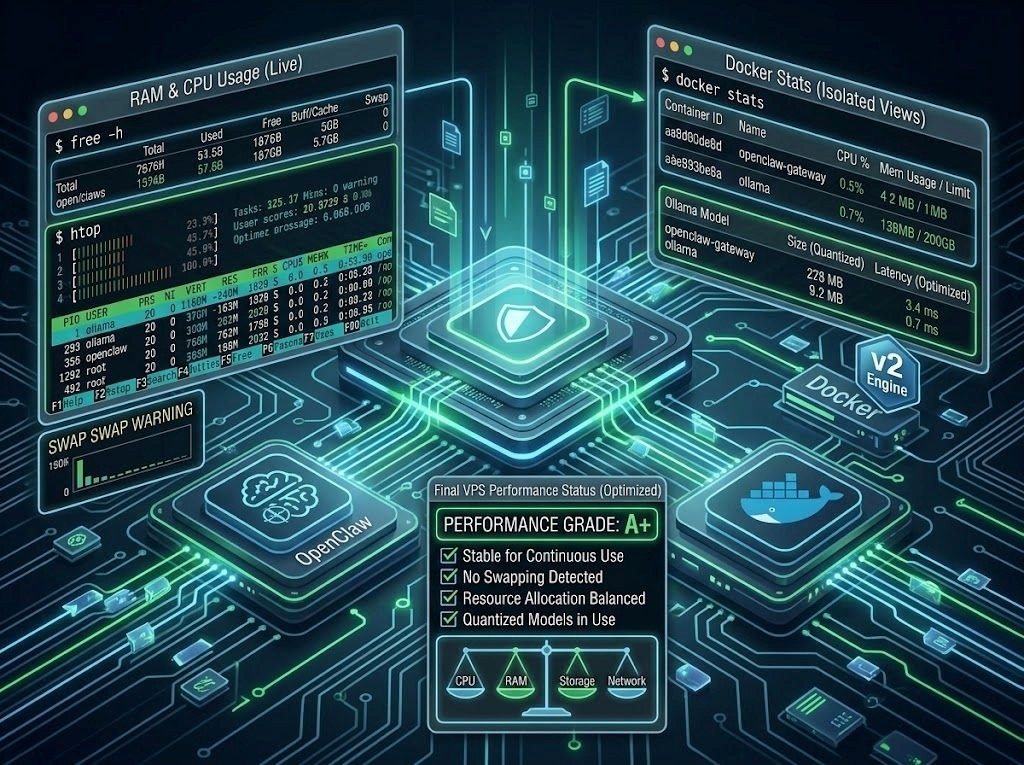
Monitor RAM and CPU Usage
When Ollama runs on the same machine as OpenClaw, monitor memory usage regularly:
free -h
You can also inspect running processes:
htop
and check Docker resource consumption:
docker stats
If the server begins swapping heavily, responses from Ollama can become extremely slow. In some cases, the entire VPS may become unstable.
The correct solution is not always adding more swap. Swap can help prevent an immediate out-of-memory crash, but it does not turn insufficient physical RAM into high-performance AI inference. If local model inference is the primary purpose of the machine, increasing RAM or selecting a smaller quantized model is usually a better approach.
Keep Ollama Private
A particularly important VPS security rule is to avoid exposing the Ollama API directly to the public internet.
Ollama normally uses port 11434. If OpenClaw and Ollama are running on the same VPS, there is usually no reason for internet users to access that port.
When OpenClaw runs inside Docker while Ollama runs directly on the host, the networking configuration needs special attention. OpenClaw’s current Docker documentation explains that 127.0.0.1 inside the container refers to the container itself, not the host. For host-based Ollama, the Docker setup can use host.docker.internal, with the appropriate host-gateway mapping on Linux.
This distinction prevents a common configuration error in which Ollama is working correctly on the VPS but OpenClaw cannot reach it.
Use Persistent Storage Correctly
A reliable self-host OpenClaw deployment should treat configuration and workspace data as persistent assets.
The current OpenClaw Docker VM documentation recommends persistent locations such as:
$HOME/.openclaw$HOME/.openclaw/workspace$HOME/.openclaw-auth-profile-secrets
These directories can contain important configuration and authentication information, so they should be included in a backup strategy.
Do not assume that a Docker container itself is permanent storage. Containers can be recreated during upgrades, troubleshooting, or deployment changes. Persistent volumes or host directories should therefore be used for data that must survive container replacement.
A good backup strategy should include:
- OpenClaw configuration
- Workspace data
- Authentication information
- Important automation files
- Docker Compose configuration
- Relevant environment variables
- Any custom integration settings
Secrets should be stored securely and should never be uploaded to a public repository.
Step 12: Improve Docker Isolation
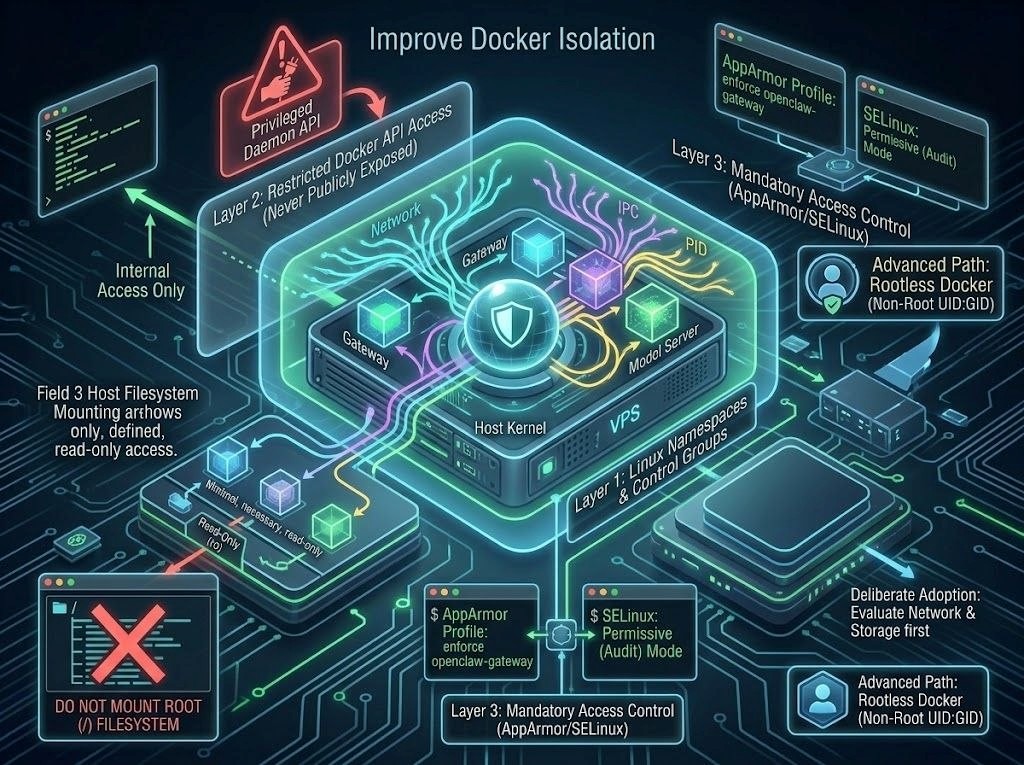
For a security-conscious OpenClaw on a VPS deployment, container isolation deserves particular attention.
Docker uses Linux namespaces and control groups to isolate containers, but Docker itself warns that access to the Docker daemon is highly privileged. A user who can control the Docker daemon can potentially create containers with powerful host filesystem access.
Therefore, do not expose the Docker API to the public internet.
You should also avoid unnecessary host filesystem mounts. For example, giving a container unrestricted access to / or sensitive directories can undermine much of the isolation that Docker provides.
Where practical, run applications with the minimum privileges they need. Docker’s security documentation recommends reducing unnecessary capabilities and using additional security mechanisms such as AppArmor or SELinux where appropriate.
For advanced administrators, Docker Rootless mode is another option. Rootless mode runs both the Docker daemon and containers without root privileges, reducing the impact of certain daemon and container vulnerabilities.
However, Rootless Docker has compatibility and configuration considerations, so it should be adopted deliberately rather than simply enabled without understanding its networking and storage implications.
Step 13: Update OpenClaw Safely
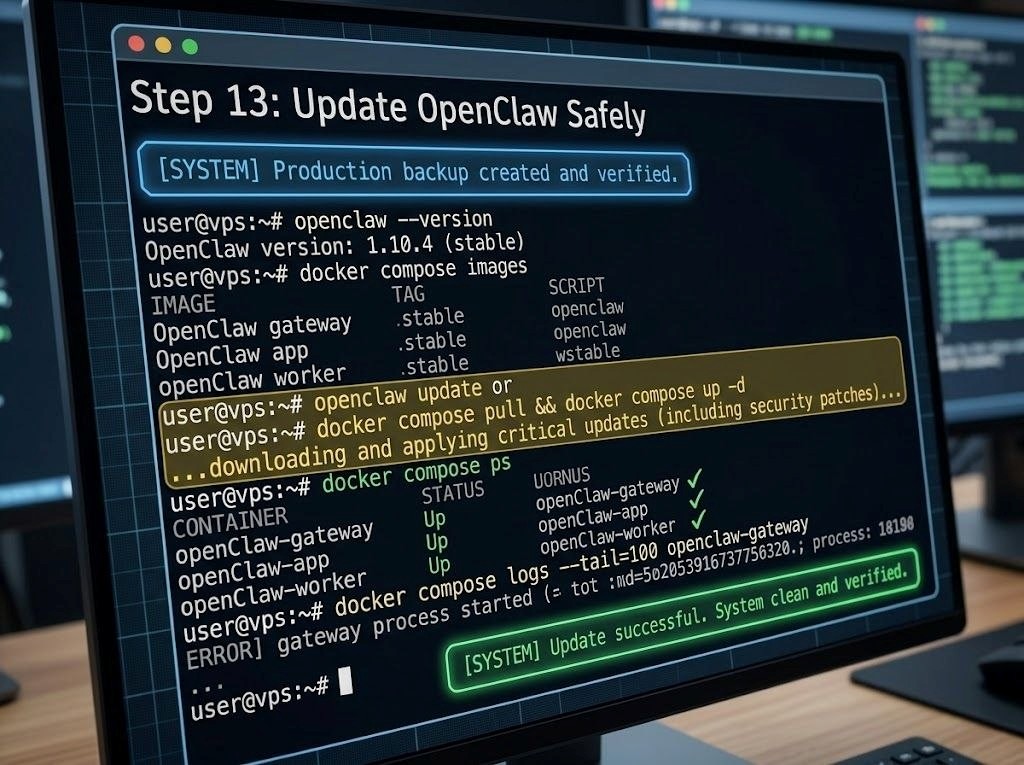
Keeping OpenClaw updated is an essential component of VPS security. AI agent software evolves quickly, and updates can include security fixes, dependency updates, bug fixes, and improvements to integrations.
Before updating a production installation, create a verified backup.
Then inspect the currently running version:
openclaw –version
For Docker deployments, inspect the running images:
docker compose images
After updating the image or source checkout, restart the stack and verify its status:
docker compose up -ddocker compose ps
Then inspect the logs:
docker compose logs –tail=100 openclaw-gateway
OpenClaw’s current installation documentation also provides commands such as openclaw doctor and openclaw gateway status for checking configuration and Gateway state.
Do not automatically update immediately before an important production workload. A safer workflow is:
Backup → Update → Verify → Test → Resume normal operation
This is especially important when your self-host OpenClaw instance is connected to messaging channels, automation tools, or valuable workspace data.
Step 14: Create a Practical VPS Security Checklist
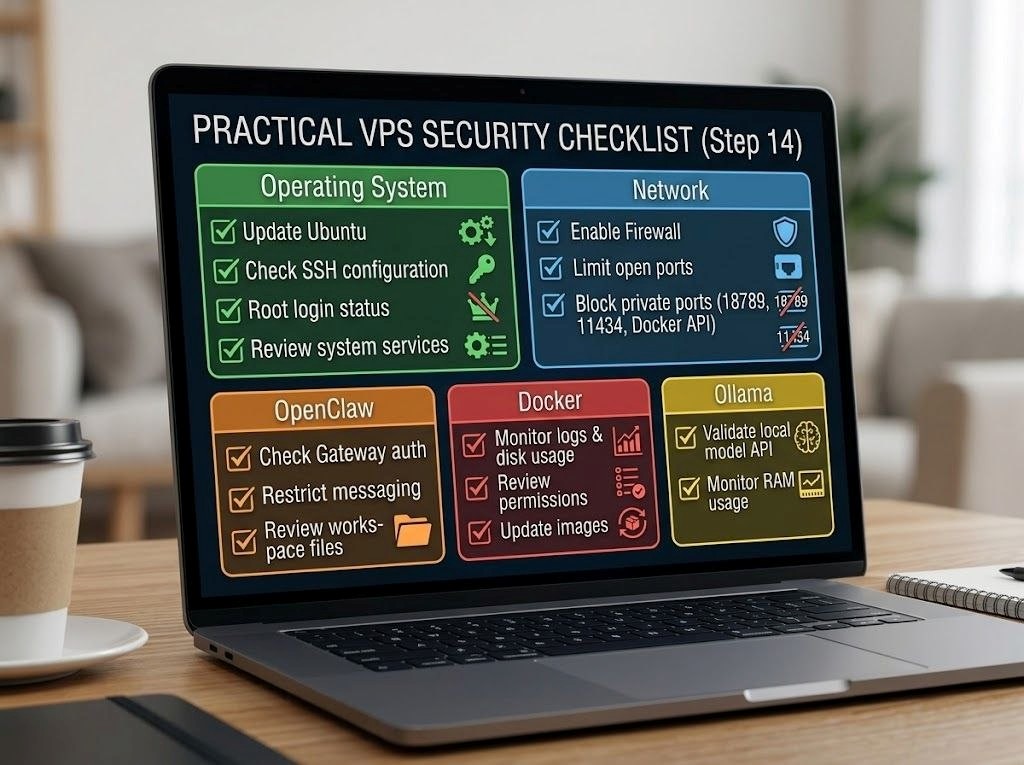
Before considering OpenClaw on a VPS production-ready, review the following VPS security checklist:
Operating System
- Ubuntu is updated.
- Security updates are installed regularly.
- SSH keys are configured.
- Root login is restricted.
- Unnecessary system services are disabled.
Network
- UFW or another firewall is enabled.
- Only required ports are open.
- Port 18789 is not unnecessarily exposed publicly.
- Ollama port 11434 is private.
- Docker’s API is not publicly accessible.
OpenClaw
- Gateway authentication is enabled.
- Messaging access is restricted.
- Sensitive tools are reviewed.
- The workspace contains only appropriate files.
- openclaw security audit is run regularly.
Docker
- Official OpenClaw images are used.
- Containers do not receive unnecessary privileges.
- Sensitive host directories are not mounted unnecessarily.
- Docker images are updated.
- Logs and disk usage are monitored.
Ollama
- Only an appropriate model is loaded.
- RAM usage is monitored.
- The API is not unnecessarily exposed.
- Model files have sufficient storage space.
Following this VPS security checklist provides substantially stronger protection than simply installing a firewall and assuming the server is secure.
Step 15: Troubleshoot the Most Common Problems
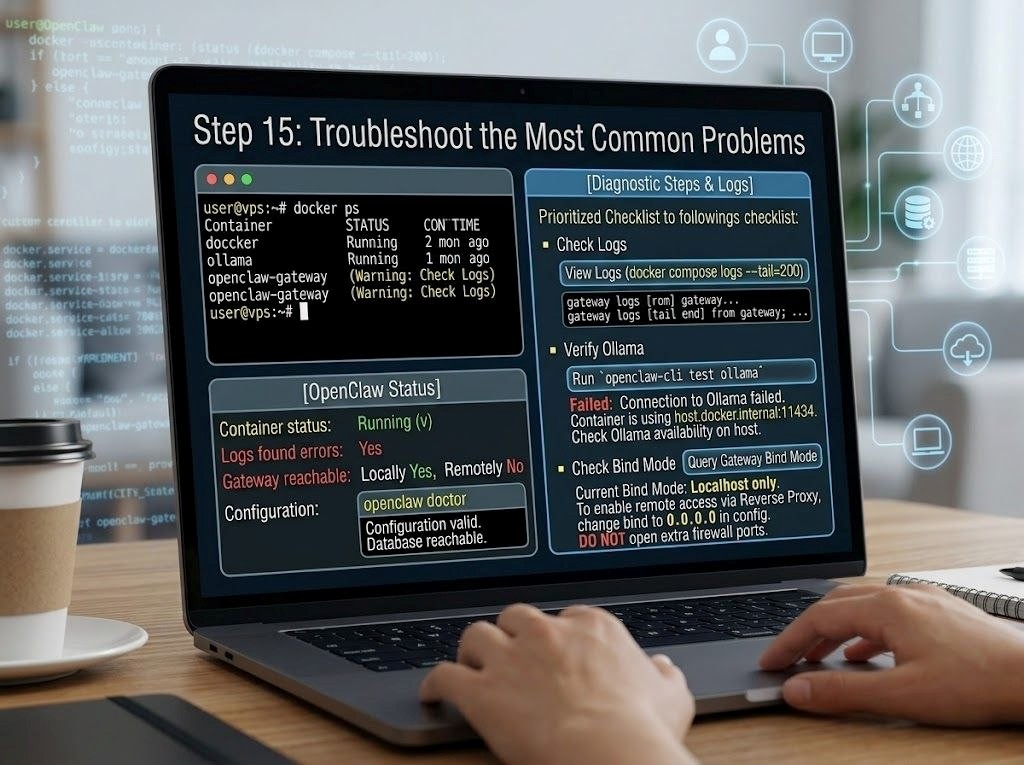
If self-host OpenClaw fails after installation, start with the simplest diagnostic commands rather than immediately reinstalling everything.
Check Docker:
docker ps
Check OpenClaw:
openclaw gateway status
Check configuration:
openclaw doctor
Check container logs:
docker compose logs --tail=200
If OpenClaw cannot reach Ollama, first test Ollama independently from the VPS. Then verify the address used by the container. Remember that 127.0.0.1 inside a container does not refer to the host system. OpenClaw’s Docker networking documentation specifically identifies host.docker.internal:11434 as the Docker-side address for an Ollama service running on the host.
If the Gateway works locally but cannot be accessed remotely, do not immediately open additional firewall ports. First determine whether the problem is the SSH tunnel, VPN, reverse proxy, Docker port publishing, or Gateway bind mode.
This troubleshooting philosophy is an important part of VPS security: change the smallest possible number of variables, identify the actual failure point, and avoid solving an access problem by unnecessarily exposing another service.
Final Recommendations Before Production
A well-designed OpenClaw on a VPS installation should prioritize isolation and controlled access over convenience. Docker can provide a reproducible deployment environment, while Ollama can provide local model inference when the VPS has sufficient resources. Neither technology, however, automatically makes an AI agent secure.
The strongest architecture is one where the Gateway is private, model services are private, authentication is mandatory, messaging users are restricted, sensitive files are protected, and backups are verified.
For administrators following this approach, the most important principle is simple: self-host OpenClaw for control, but do not confuse control with automatic security.
Your VPS security checklist should be reviewed again whenever you add a new channel, plugin, tool, model, public endpoint, or privileged integration. OpenClaw’s current Docker guidance also explicitly recommends reviewing network exposure on public VPS hosts, including Docker’s DOCKER-USER firewall chain.
With these measures in place, OpenClaw on a VPS, Ollama, and Docker can form a flexible foundation for a private AI assistant that remains accessible while keeping unnecessary public exposure to a minimum.