How to Backup a Server or VPS: The Ultimate 2026 Guide
Backing up a server or VPS is one of the most important parts of system administration. No matter how stable your infrastructure looks today, problems such as hardware failure, accidental deletion, cyberattacks, corrupted updates, or provider outages can happen at any time. Without a proper backup, even a small incident can turn into a major business disruption. A good backup strategy is not just about saving files. It is about making sure your entire service can be restored quickly and accurately when needed.
Step 1: Planning and Strategyfailures, accidental deletions, cyberattacks, corrupted updates, or provider outages can occur
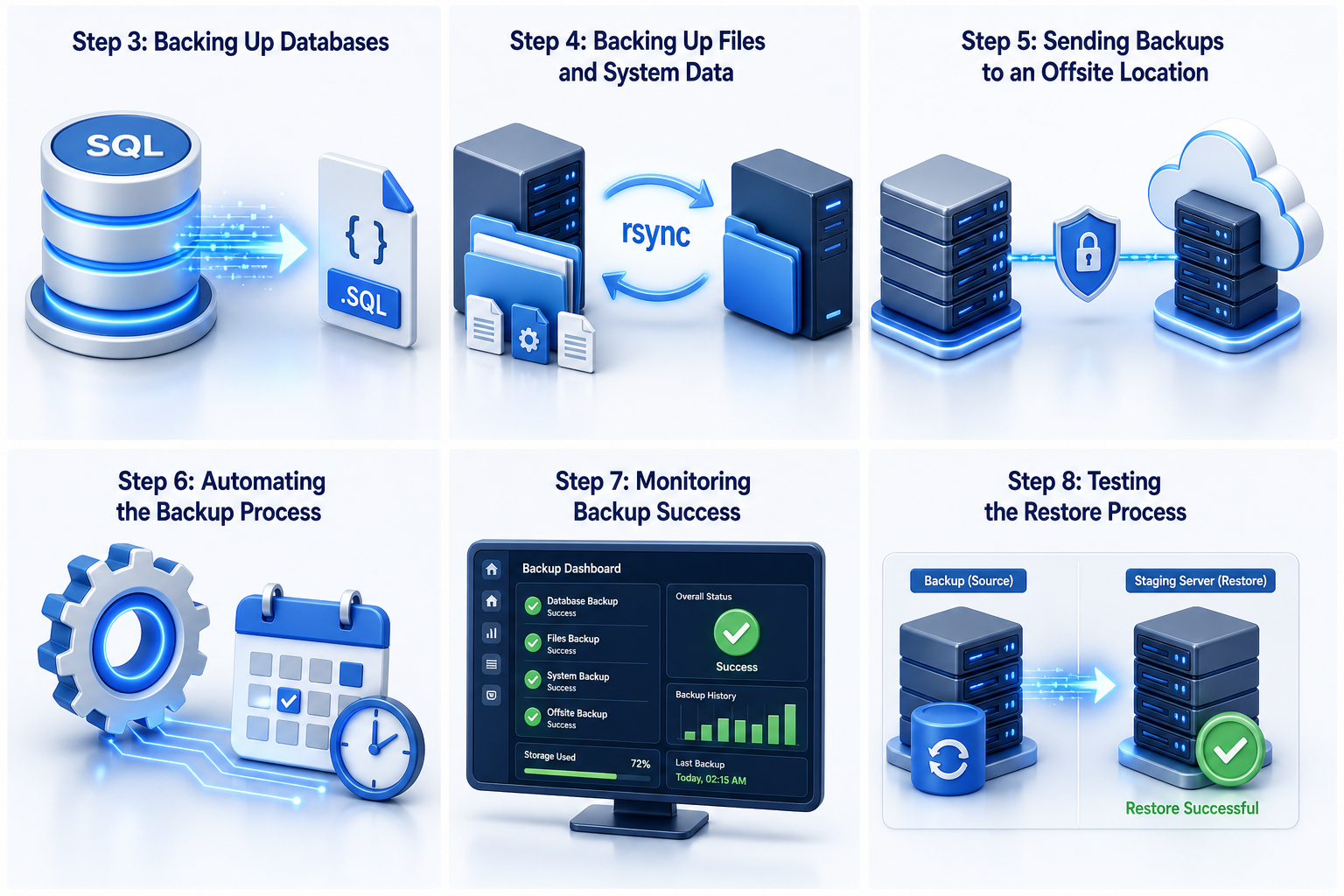
The first step in backing up a server or VPS is planning exactly what needs to be protected. You should identify all important data, including website files, application files, databases, configuration files, SSL certificates, user directories, and scheduled tasks. After that, define how much data loss is acceptable for your project and how quickly the server must be restored after a failure. This is where Recovery Point Objective and Recovery Time Objective become important. You should also decide how long backups will be stored, such as daily backups for seven days, weekly backups for one month, and monthly backups for several months.
Step 2: Preparing the Environment
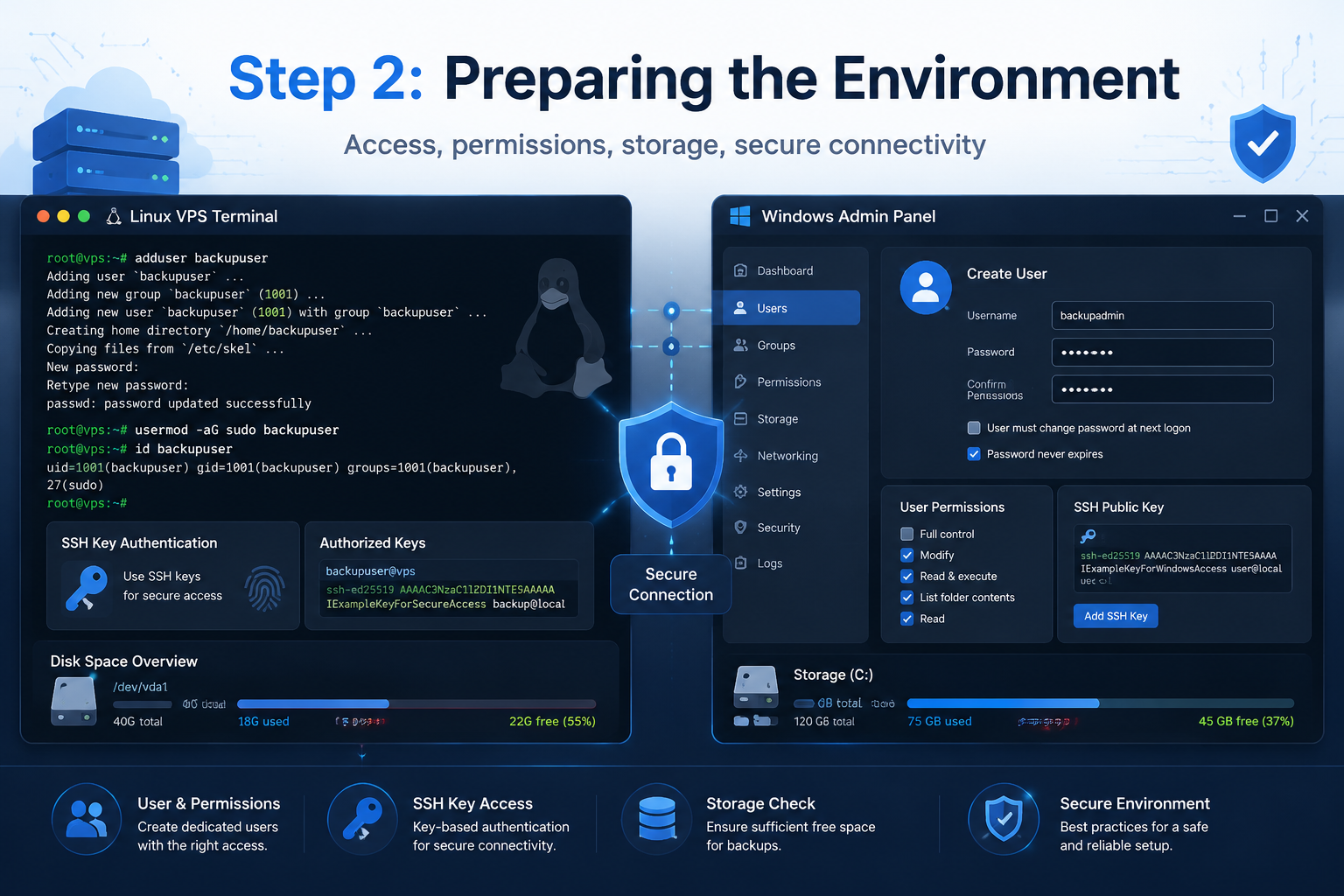
Before starting the actual backup, the environment must be ready. Make sure you have root access on Linux or administrator access on Windows so you can read all required files and services. It is safer to create a dedicated backup user with limited permissions instead of using the main root account for everything. You also need to check available disk space on both the source server and the backup destination. If you are transferring backups to another server, set up secure SSH key authentication so automated jobs can run without asking for a password.
Step 3: Backing Up Databases
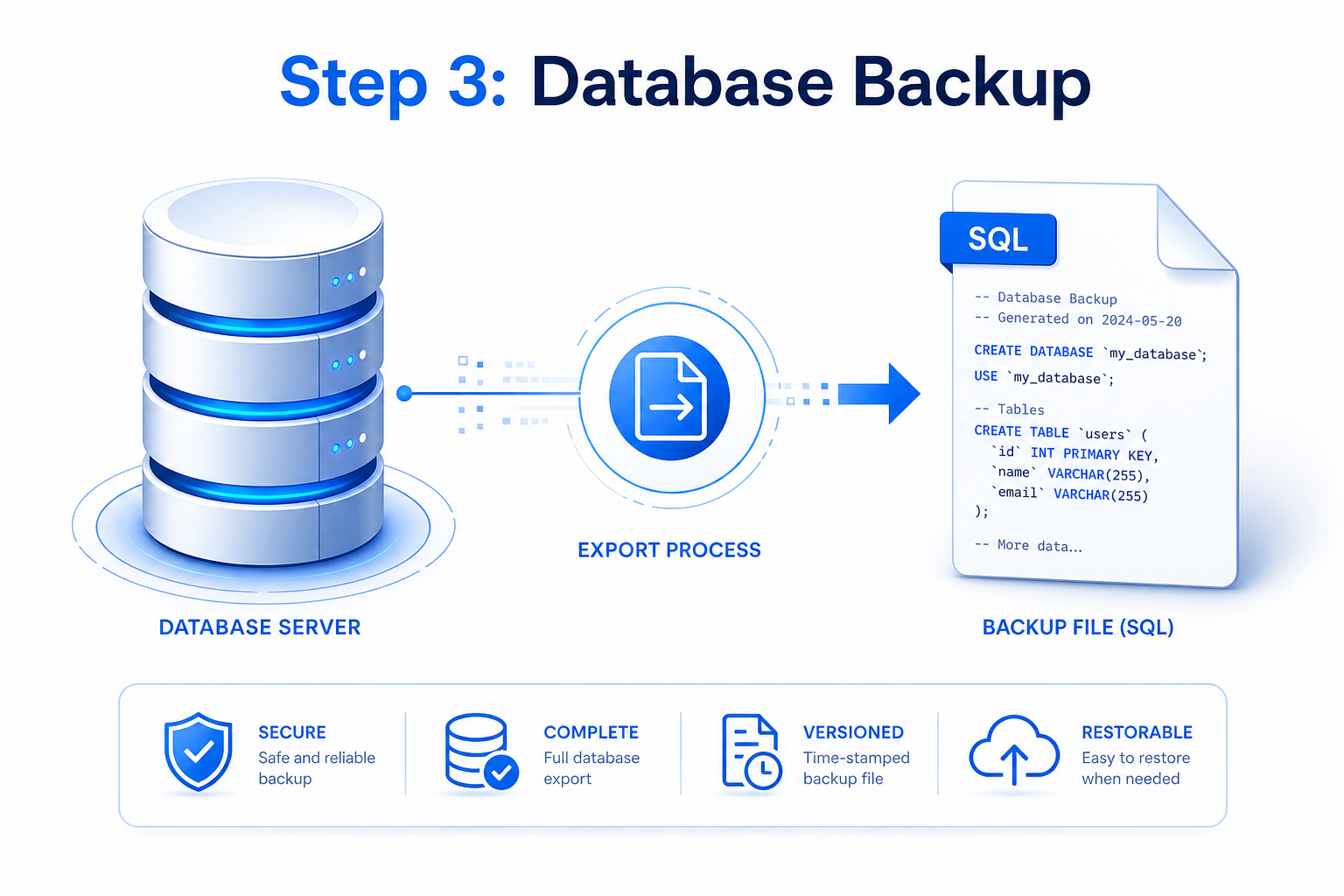
Databases must be backed up carefully because they are always changing while the server is running. You should never rely on simply copying raw database files unless the service is properly stopped and the method is designed for that engine. For MySQL or MariaDB, use `mysqldump` to create a clean export of the database in SQL format. For PostgreSQL, use `pg_dump` or `pg_dumpall` depending on whether you want a single database or the entire cluster. Save each backup with a timestamp in the filename so you can easily identify the correct restore point later.
Step 4: Backing Up Files and System Data
After exporting databases, the next step is to back up the file system and important server data. This includes website files, uploaded content, application code, system configuration files, user home directories, SSL certificates, and cron jobs. One of the best tools for this purpose is `rsync` because it only transfers changed data, which saves time and bandwidth. Another useful option is `tar`, which creates a compressed archive file that is easy to store and move. During this process, you should exclude temporary system directories like `/proc`, `/sys`, `/tmp`, `/dev`, and `/run` because they do not contain restorable business data.
Step 5: Sending Backups to an Offsite Location
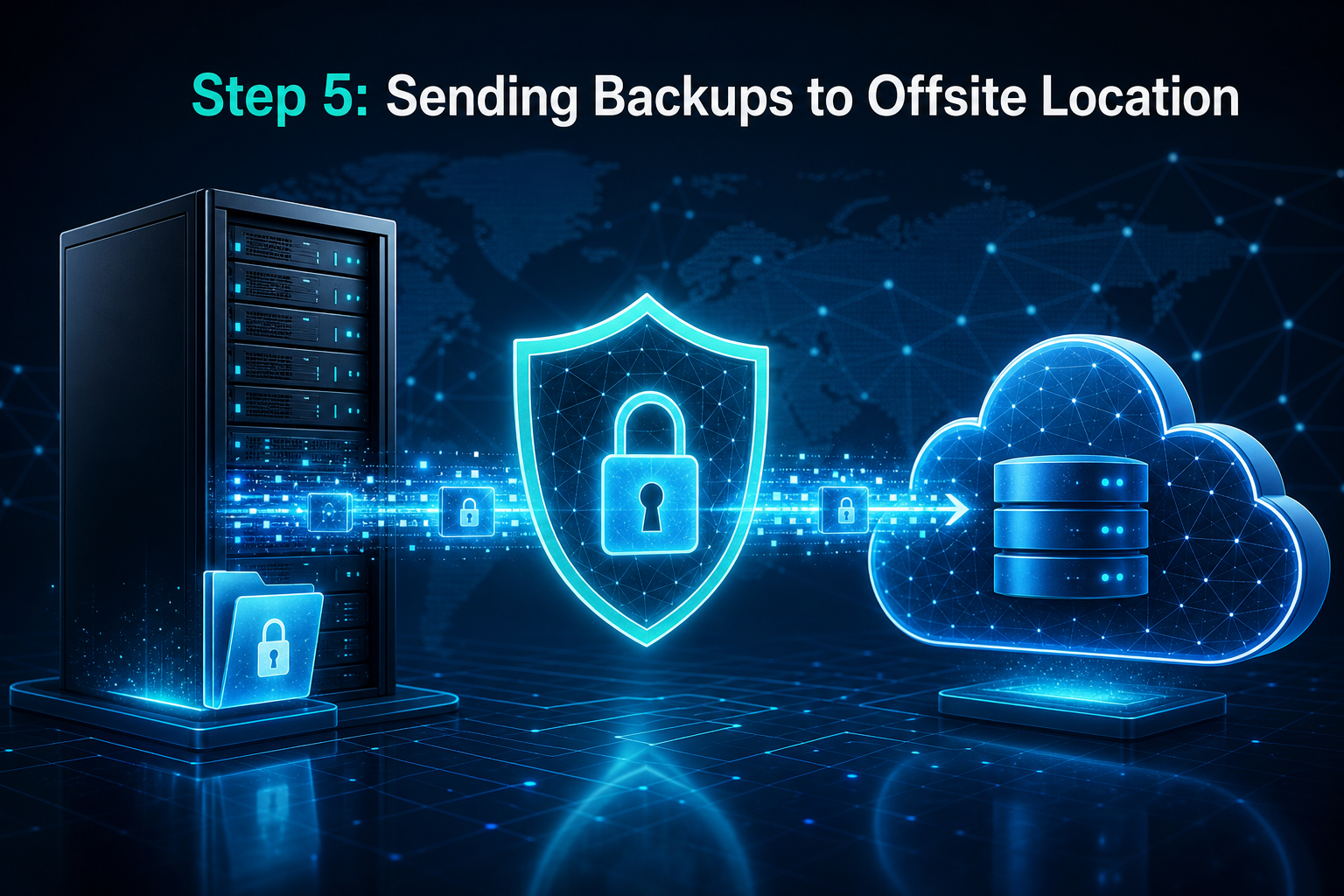
A backup is far more reliable when it is stored outside the original server environment. If you keep backups on the same VPS, they can be lost during hardware failure, ransomware infection, accidental deletion, or provider outage. To avoid this risk, send your backup files to an offsite destination such as object storage, a remote backup server, or another VPS in a different location. Before transferring sensitive data, it is strongly recommended to encrypt the backup files. Encryption helps protect private information even if the storage account or transfer path is compromised.
Step 6: Automating the Backup Process
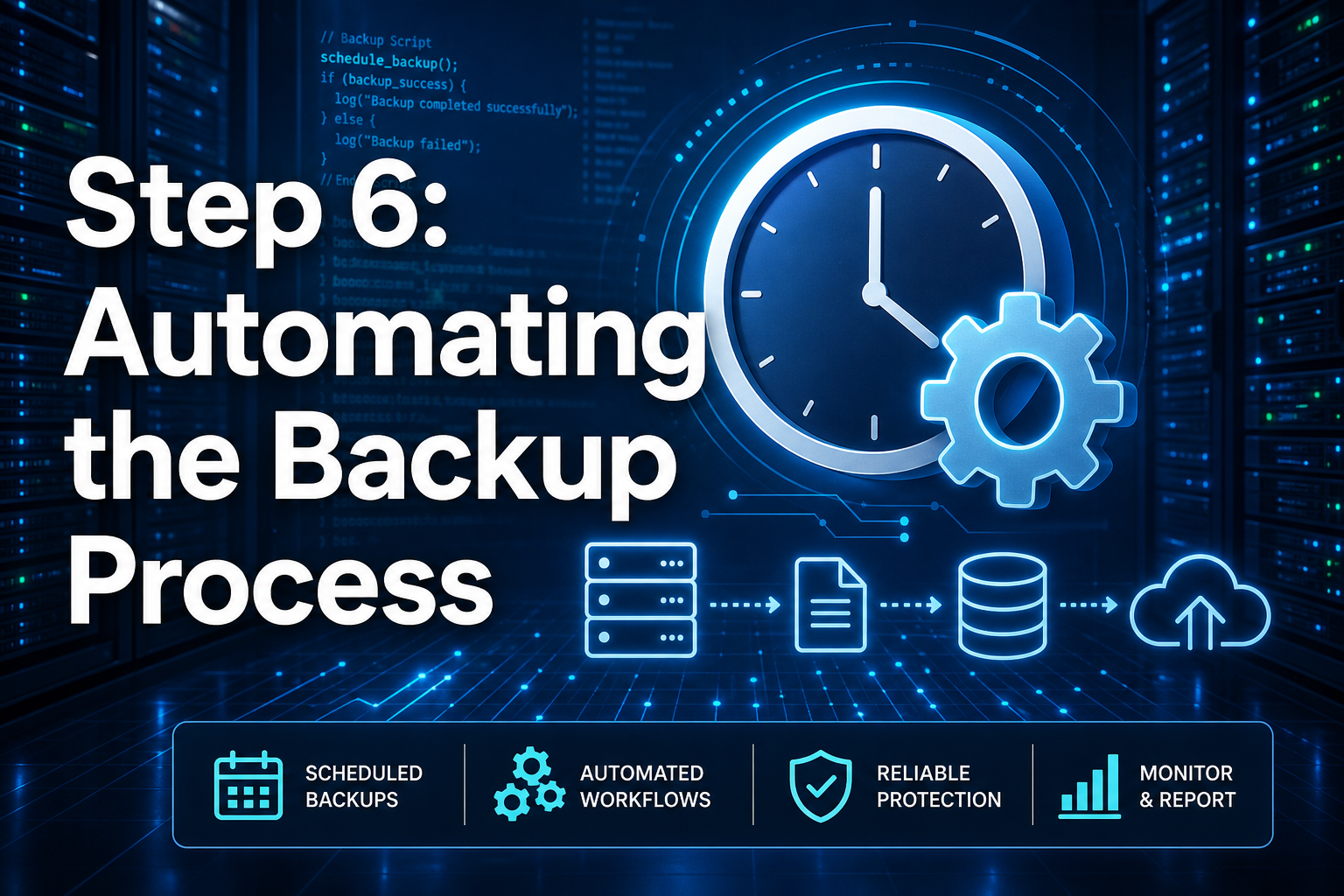
Backups should never depend on memory or manual effort alone. Automation ensures that backups happen consistently and on time. On Linux, you can use `cron` to schedule backup scripts, while on Windows you can use Task Scheduler or built-in backup tools. A good automation script should first dump the databases, then copy or archive the file system, and finally transfer the results to the offsite destination. It should also create logs so you can review what happened after each run and detect failures quickly.
Step 7: Monitoring Backup Success
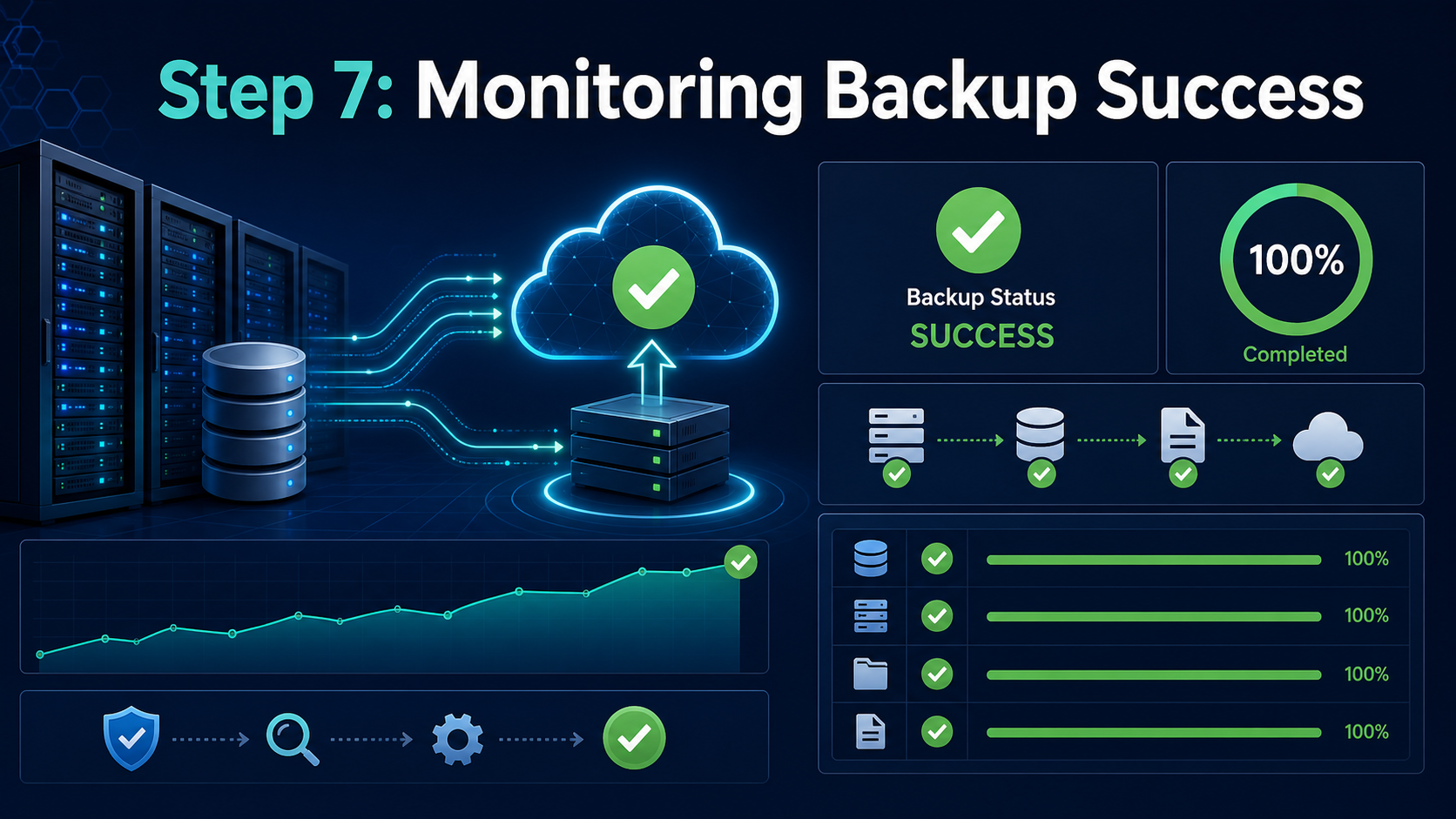
Running a backup job is not enough if nobody checks whether it actually finished successfully. Every automated backup system should produce log files that show the date, time, and result of each operation. If a database export fails or the remote destination is unavailable, the system should record the error clearly. It is also helpful to configure email alerts or other notifications so you are informed immediately when a backup does not complete. Monitoring turns backup from a passive process into an active protection system that you can trust.
Step 8: Testing the Restore Process
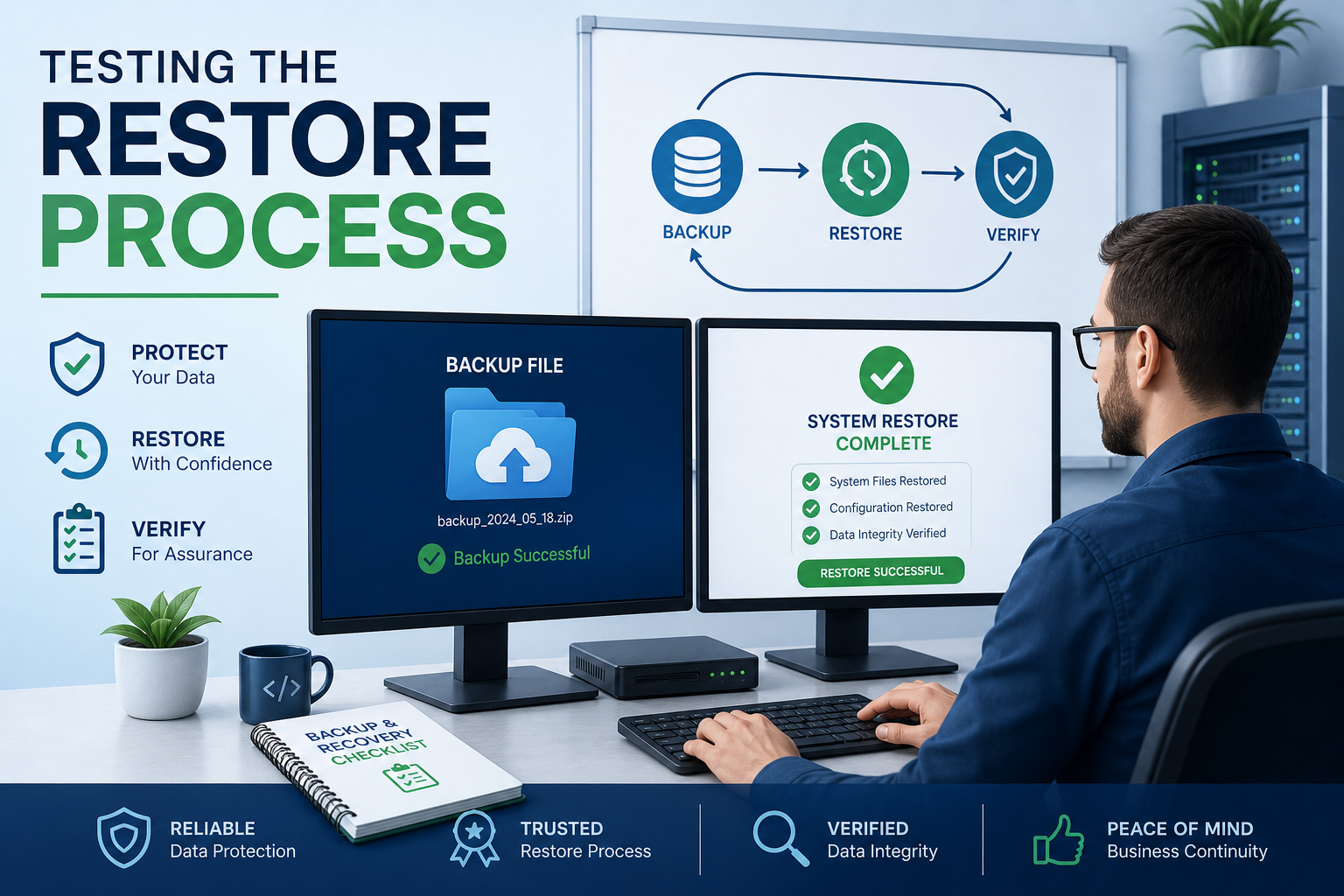
The final and most important step is testing whether the backup can actually be restored. Many people create backups for months or years without ever verifying that the data is usable. At regular intervals, restore the backup to a separate test server or staging environment and confirm that the files are complete, the databases import correctly, and the applications start without errors. Check login functionality, website content, service configuration, and SSL setup if needed. A backup only becomes truly valuable when you have proven that it can restore the server successfully in a real recovery situation.
What a Server Backup Should Include
A server backup should include everything required to rebuild the system and restore services without confusion or delay. Many people think a backup only means copying website files, but that approach leaves out the most critical parts of a working environment. A complete backup should capture application files, databases, server settings, user data, SSL certificates, and scheduled tasks. The goal is not only to save data, but also to preserve the structure that allows the server to function properly. If one important component is missing, recovery can become far more difficult than expected.
Files, Databases, and System Configuration
Every reliable server backup is built on three essential layers: files, databases, and system configuration. Files include website content, application code, uploads, images, and documents that users or administrators rely on every day. Databases store dynamic content such as user records, product information, and application data, so they must be backed up using proper database tools rather than copied like ordinary files. System configuration includes web server settings, firewall rules, environment files, service definitions, and SSH access details. Together, these three layers represent the minimum required for a usable and complete backup.
Application-Specific Data You Should Not Miss
In many cases, the most important parts of a backup are not the obvious ones but the hidden application-specific items that keep services running correctly. A Docker-based application may need volumes, compose files, and container settings to function after a restore. A mail server may depend on mailbox data, user accounts, and service configuration files. Some applications use Redis, Elasticsearch, or custom queue systems, all of which may store critical data in nonstandard locations. Files such as `.env`, private keys, API credentials, and scheduled task definitions are often forgotten, yet they are essential during recovery.
What a VPS Snapshot Does and Does Not Protect
A VPS snapshot can be useful, but it is important to understand its role. A snapshot captures the state of a disk at a specific moment and can help you roll back quickly after a failed update or configuration mistake. However, snapshots are usually stored within the same provider environment, which means they may not protect you from a larger infrastructure failure or account issue. They are also less flexible when you need to restore only one file or one application component. In practice, snapshots are valuable for short-term rollback, but they should never be treated as a complete backup strategy on their own.
Best VPS Backup Methods for Different Use Cases
There is no single backup method that works equally well for every VPS or server environment. The best approach depends on the workload, the importance of the data, and how quickly the system needs to be restored. Snapshots are excellent for fast rollback and operational safety before changes. File-level backups are ideal for websites, content, and application data because they allow more granular recovery. Full image backups are more suitable for complex systems that need complete restoration, while database dumps remain essential for any data-driven application. In most professional environments, combining multiple methods produces the strongest result.
When a Snapshot Is Enough
A snapshot alone may be enough in limited situations where the server is not critical and can be rebuilt without much effort. For example, a development server, testing environment, or temporary staging machine may not require a full offsite backup system if the data is disposable or easy to recreate. In such cases, the speed and convenience of snapshots can be enough for short-term recovery. However, this only applies when downtime and data loss have little impact. For anything tied to business operations, customer content, or important services, a snapshot alone is not enough.
When You Need File-Level Backups
File-level backups become necessary as soon as the server stores data that cannot be easily recreated. This includes uploaded media, website content, custom scripts, user documents, configuration files, and certificates. Unlike full snapshots, file-level backups let you restore specific directories or files without affecting the rest of the system. This flexibility is especially valuable when only part of the server is damaged or deleted. They are also easier to move to offsite storage, making them a practical and cost-effective part of a long-term backup strategy.
When to Combine Snapshots with Offsite Backups
For most production environments, the best solution is to combine snapshots with offsite backups rather than choosing one over the other. Snapshots provide fast rollback when an update fails or a configuration change causes problems. Offsite backups protect against larger disasters such as hardware failure, provider outages, ransomware, or accidental account loss. When both methods are used together, the recovery process becomes both faster and safer. This layered approach is widely considered the most dependable way to protect business-critical workloads on a VPS.
Server Backup Checklist Before You Begin
Before setting up any backup process, it is important to make sure the environment is ready. Many backup jobs fail not because of the tool itself, but because storage is insufficient, permissions are missing, or the process was never planned properly. You should confirm that the server has enough free space to create backup files temporarily if needed. You should also verify that the destination storage is reachable and large enough to hold multiple versions. A backup strategy works best when preparation is treated as part of the process, not as an afterthought.
Access, Storage, and Retention Prerequisites
A successful backup setup starts with the right level of access and enough storage capacity. On Linux, root or sudo access is usually needed to capture system files and service configurations. On Windows, administrator privileges are required for full backup tools and system-level operations. Storage should be planned with retention in mind, which means you need space not only for one backup but for several daily, weekly, and monthly versions. It is also important to decide in advance how long backups will be kept so that storage usage remains predictable and controlled.
Define Your Recovery Point and Recovery Time Goals
Every backup plan should be based on realistic recovery goals rather than guesswork. Recovery Point Objective, or RPO, defines how much recent data you can afford to lose if something goes wrong. Recovery Time Objective, or RTO, defines how quickly the service must be restored and available again. These two metrics influence how often backups run and which backup methods should be used. A small personal project may tolerate a full day of data loss, while an online business may need hourly backups and a very fast recovery path.
Choose a Backup Destination
Choosing where to store backups is just as important as deciding how to create them. If backups remain on the same VPS or in the same provider environment, they may be lost during the same incident that affects the production system. A stronger strategy is to use a separate storage destination such as object storage, a backup VPS, a storage server, or a different region. The further the backup is isolated from the source system, the more useful it becomes during a serious failure. A good destination should also be reliable, accessible, and appropriate for your retention policy.
How to Backup a Linux Server with rsync and tar
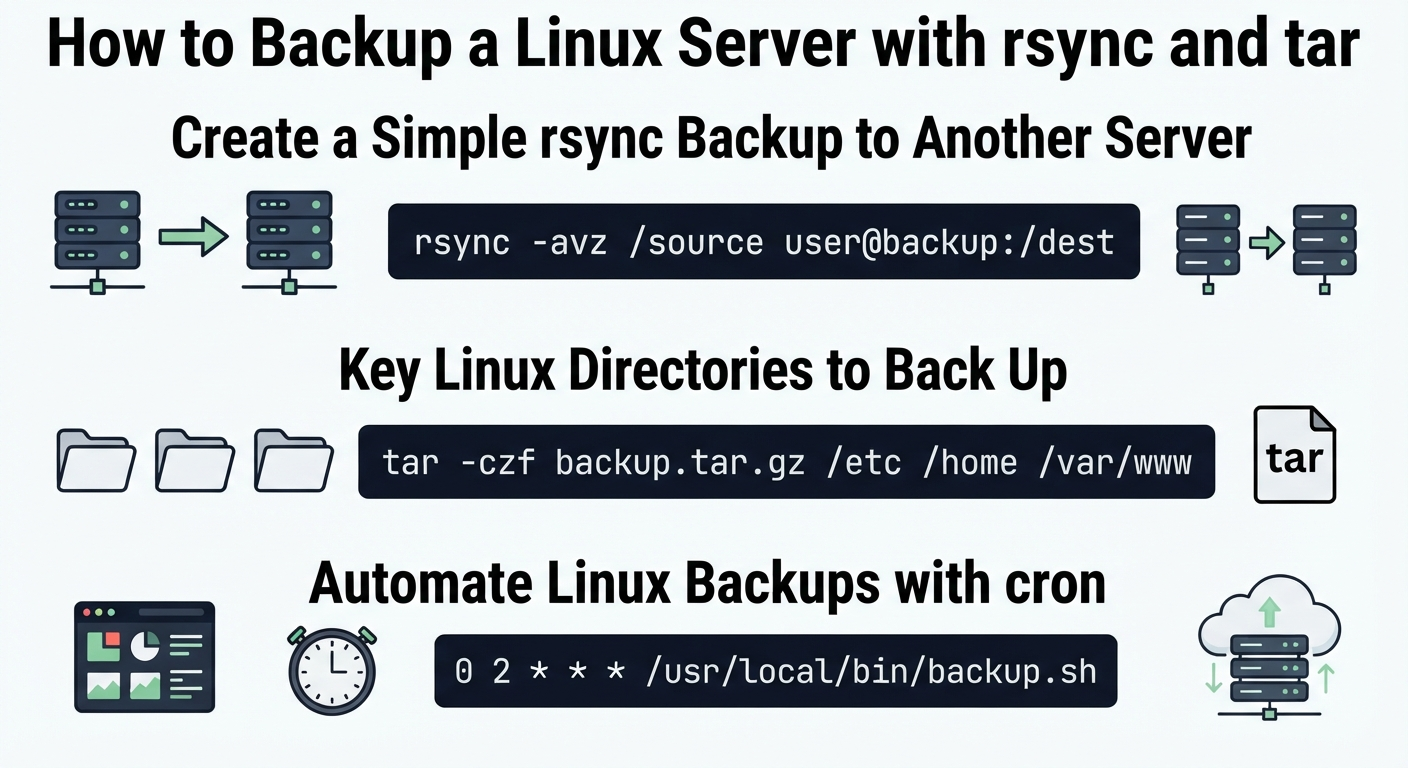
Linux provides some of the most reliable and flexible backup tools available. Two of the most common are `rsync`, which is excellent for synchronizing files to another server, and `tar`, which is useful for creating compressed archives. These tools are widely available, easy to automate, and suitable for both small and large environments. They can be used separately or together depending on whether you need file-level synchronization or long-term archive storage. For many administrators, they form the backbone of a practical Linux backup strategy.
Create a Simple rsync Backup to Another Server
The `rsync` command is widely used because it transfers only the differences between the source and destination, which saves bandwidth and reduces backup time. It also preserves important metadata such as permissions, timestamps, and symbolic links when used with the correct options. This makes it highly effective for backing up website files, application data, and configuration directories to another machine over SSH. Because it can mirror changes incrementally, `rsync` is especially useful for regular daily backups. It is one of the most trusted tools for efficient Linux file-level protection.
Archive Important Directories with tar
The `tar` utility is ideal when you want to create a single backup file that can be stored, transferred, or archived easily. It allows you to package important directories together and compress them into a manageable format such as `.tar.gz`. This is useful for weekly or monthly backups, cold storage, or situations where a complete archive is easier to manage than thousands of separate files. It also works well when you want a backup that can be copied to object storage or external servers as one file. For many server owners, `tar` remains one of the simplest and most effective archive tools.
Back Up MySQL and PostgreSQL Databases on Linux
Databases require special care because they are constantly changing while the server is running. Copying raw database files directly can lead to inconsistent or corrupted backups, especially on active systems. The proper method is to use database-aware dump tools that create a structured export of the data in a safe and restorable format. For MySQL and MariaDB, `mysqldump` is commonly used, while PostgreSQL systems often rely on `pg_dump` or `pg_dumpall`. These tools make it possible to restore databases accurately and are an essential part of any VPS backup routine.
Key Linux Directories to Back Up
Knowing which directories matter most can make the difference between a complete recovery and a partial one. The `/etc` directory is essential because it stores system and service configuration. The `/var/www` directory often contains website files, while `/home` may include user data and application resources. The `/root` directory can hold administrative scripts and SSH keys, and `/var/spool/cron` may contain scheduled tasks that are easy to forget. In many environments, SSL certificates under `/etc/letsencrypt` and application-specific storage paths are equally important.
Automate Linux Backups with cron
A backup that depends on manual action is unreliable over time, especially in busy production environments. The `cron` system allows Linux administrators to schedule backups automatically so they run at fixed times without human intervention. This greatly reduces the chance of missed backups and helps create a predictable routine. By placing commands inside shell scripts, you can also add logging, error checks, cleanup functions, and notifications. Automation turns backup from a one-time action into a dependable process that supports long-term server stability.
How to Backup a Windows Server or Windows VPS
Windows servers require different tools than Linux systems, but the core backup principles remain the same. You still need to protect files, system state, applications, and databases in a way that supports real recovery. Microsoft provides built-in tools such as Windows Server Backup and Volume Shadow Copy Service, which make it possible to create consistent backups while services are running. In more advanced environments, PowerShell scripts and Task Scheduler can be used to automate custom backup workflows. A well-planned Windows backup strategy can be just as reliable as a Linux one.
Use Windows Server Backup for Full-Server Protection
Windows Server Backup is one of the most practical starting points for protecting a Windows VPS or dedicated server. It can create full-server backups, scheduled backups, and recovery data that help restore systems after major failures. Because it integrates with Windows services and system components, it is well suited for administrators who want a native backup solution. It is especially useful for protecting the operating system, installed roles, and important volumes together. For many organizations, it provides a stable foundation for routine server protection.
Export Files and Application Data Safely
On Windows, consistent backup often depends on Volume Shadow Copy Service, also known as VSS. This technology allows the system to capture data in a stable state even while applications continue running. It is especially important for services such as SQL Server, IIS, and other enterprise applications that need consistency during backup. In addition to system-level backups, some applications benefit from their own export tools or backup commands. Using both built-in system backup and application-aware export methods leads to more dependable recovery results.
Schedule Automated Backups with Task Scheduler or Built-In Tools
Automation is just as important on Windows as it is on Linux. Windows Server Backup includes its own scheduling options, but Task Scheduler can be used when you need more control over scripts and custom processes. By automating backup commands, administrators reduce the risk of missed jobs and maintain a regular protection cycle. Scheduled tasks can also be configured to produce logs or trigger alerts when something fails. This helps ensure that the backup system remains active, visible, and dependable over time.
Snapshot vs Backup for VPS Protection
Although the terms are often used together, snapshots and backups are not the same thing. A snapshot captures the system at a specific point in time and is mainly useful for quick rollback after a bad change. A backup, on the other hand, is designed for longer retention, more flexible recovery, and stronger protection against serious failures. Backups can include file-level data, databases, and offsite copies that remain safe even if the original server is lost. Understanding this difference is essential when designing a reliable protection strategy.
Why Snapshots Should Not Be Your Only Backup
Relying only on snapshots creates a false sense of security. If the hosting provider experiences a major outage, if the account is suspended, or if the underlying storage system becomes unavailable, snapshots may disappear along with the VPS itself. They are also less practical when you need to recover only a few files or a single application. In many cases, snapshot retention is limited and controlled by the provider’s infrastructure. That is why snapshots should always be supported by a separate, offsite, and independently managed backup system.
Best Practice Backup Stack for Production VPS Environments
Production environments usually need more than one backup layer to achieve both speed and resilience. A common best practice is to take snapshots before major updates or migrations so rollback is immediate if something fails. At the same time, databases should be dumped regularly and files should be copied offsite each night. Weekly full backups and monthly archived copies provide additional safety for long-term recovery and compliance needs. When combined with encryption and monitoring, this layered model creates a strong and practical backup foundation.
Automated Server Backups and Offsite Storage Strategy
A strong backup strategy is not only about creating copies of data, but about making the whole process automatic, secure, and independent from the primary server. Automation ensures backups happen on schedule. Offsite storage protects against provider-level or hardware-level disasters. Encryption keeps sensitive data safe in transit and at rest. Monitoring confirms that the process is still working and helps administrators respond quickly when a failure occurs. Without these elements, even technically correct backups can become unreliable in real-world situations.
How Often to Run Full, Incremental, and Database Backups
Backup frequency should reflect how valuable the data is and how fast it changes. A simple static website may only need one daily file backup and a weekly archive. A dynamic application with active users may require hourly database dumps because even a few hours of lost data could cause serious problems. Full backups are usually less frequent because they take more time and storage, while incremental or differential methods can fill the gap in between. The ideal schedule always depends on the acceptable level of data loss and recovery time.
How to Restore a VPS Backup and Verify It Works
Creating backups is only half of the job; the other half is making sure they can actually be restored. A backup that has never been tested may fail at the worst possible moment. Restoration planning should include not only the technical steps, but also the order in which systems, files, databases, and services are brought back online. Verification is equally important because a backup that restores incomplete or corrupted data is not truly useful. A reliable backup strategy always includes regular restore testing as part of normal operations.
Test Restores Without Risking Production
The safest way to verify a backup is to restore it into a staging or test environment rather than touching the live production server. This allows you to confirm that files are complete, databases import correctly, permissions are preserved, and services start as expected. It also gives you a chance to document the recovery process clearly for future incidents. Testing in isolation reduces the risk of making production downtime worse during troubleshooting. Regular restore testing turns backup from a theory into a proven recovery mechanism.
Recovery Steps for Linux VPS
Recovering a Linux VPS usually begins with deploying a fresh server and installing the required packages, services, and dependencies. After that, system configuration files, website content, user data, and application directories can be restored from backup. Database dumps should then be imported so that the application regains its dynamic data. SSL certificates, cron jobs, firewall rules, and service definitions must also be restored to return the environment to its original behavior. The final step is to test the application thoroughly and confirm that all services are functioning normally.
Recovery Steps for Windows VPS
Restoring a Windows VPS generally starts with preparing a clean server and reinstalling any necessary Windows roles or application prerequisites. System backups, file backups, and database exports can then be restored in a controlled sequence. If IIS, SQL Server, or custom applications are involved, their configurations should also be reapplied carefully. Once the restoration is complete, the administrator should verify service startup, network access, user authentication, and application behavior. A successful restore is one that not only recovers data, but also returns the full service to working condition.
Common Server Backup Mistakes to Avoid
Many backup failures happen because of simple but damaging mistakes. Some administrators rely only on snapshots and assume that is enough protection. Others store backups on the same server they are trying to protect, which defeats the purpose during a major failure. Configuration files, SSL certificates, scheduled tasks, and hidden application data are also often forgotten. Another common problem is never testing restores, which means backup issues remain invisible until an emergency occurs.
Final Server Backup Checklist and Next Steps
Before considering your backup strategy complete, it is important to review the essentials one more time. Make sure your files, databases, system configuration, and application-specific data are all included. Confirm that backups are automated, encrypted where necessary, and stored in at least one offsite location. Verify that retention rules are defined and that restore procedures are documented clearly. Most importantly, test the process so you know recovery will work when it matters most.
Recommended Backup Setup for Small Websites
Small websites usually do not need highly complex enterprise backup systems, but they still require consistency and offsite protection. A practical setup often includes a daily file-level backup, a daily database dump if the site uses a CMS, and a weekly compressed archive for longer retention. These backups should be copied to a remote destination such as object storage or a storage VPS in another location. Even for a small site, periodic restore testing is important because simple environments are often neglected until something breaks.
Recommended Backup Setup for Business-Critical VPS Workloads
Business-critical VPS workloads need stronger protection because downtime and data loss can directly affect revenue, customer trust, and operations. A more advanced setup may include snapshots before changes, frequent database dumps, nightly encrypted file backups, weekly full backups, and monthly archive retention. Monitoring and alerting should be enabled so failed jobs are detected immediately. Restore procedures should also be practiced in a staging environment to reduce recovery time during real incidents. This kind of layered strategy is far more dependable than relying on a single backup method.
When to Use Managed Backup Support
Managed backup support becomes valuable when the server environment is too important or too complex to leave entirely to manual administration. Businesses without an experienced system administrator may benefit from having backup schedules, monitoring, and recovery planning handled by specialists. It is also useful when compliance rules require documented retention and testing practices. For organizations where downtime is expensive, managed support can reduce risk and improve operational confidence. In many cases, it is not only a convenience but a practical investment in continuity.
Protect Your VPS Before the Next Failure Happens
The best backup plan is the one that exists before a disaster occurs, not after. Server failures, human mistakes, malware, and outages are not theoretical risks; they are common realities in modern hosting environments. A strong backup strategy gives you the ability to recover quickly, reduce downtime, and protect valuable business or personal data. By combining automation, offsite storage, testing, and the right tools, you can build a system that remains dependable under pressure. Waiting until after a failure is always the most expensive time to take backups seriously.
New to Server Terminology?
If you are new to server management, backup terminology can seem confusing at first, but understanding a few core concepts makes everything easier. A backup is simply a saved copy of data for future recovery, while a snapshot is a point-in-time image often used for quick rollback. RPO refers to how much data loss you can accept, and RTO refers to how quickly you need service restored. Offsite backup means the data is stored in a separate location away from the primary server. Once these concepts are clear, planning a backup strategy becomes much more straightforward.