Ways to improve the quality of connecting To RDP
The market for employing internet servers, both dedicated and virtual, is now quite hot and successful. Meanwhile, Windows servers remain popular owing to their simplicity of use and particular applications.
Windows server users are always looking for a practical solution to optimize and speed up remote desktop connection to their servers in all parts of the world. Of course, these options are for people who, sadly, accept instability and constant interruptions in internet connections as the norm! It has the potential to be very beneficial.
In this post, we will give a basic instruction for optimizing the connection to the remote desktop in Windows, and we hope that you will find this article helpful.
Enhance RDP Connection Quality: Buy Windows VPS Today for Seamless Remote Access!
Optimizing the speed of the remote desktop
When connecting to Windows servers through a remote desktop, loading graphic pages will reduce the speed of connection and thus decrease the user speed of the Windows server in addition to imposing a high traffic volume.
As a result, before connecting to a Windows server’s remote desktop, it is advisable to apply settings to minimize the visual level of the pages on the destination server.
Steps to increase the speed of Windows RDP
Note: These settings must be done in your personal system before connecting to the virtual server:
First, search for the phrase “mstsc” in the Start button’s search box and click on the result.
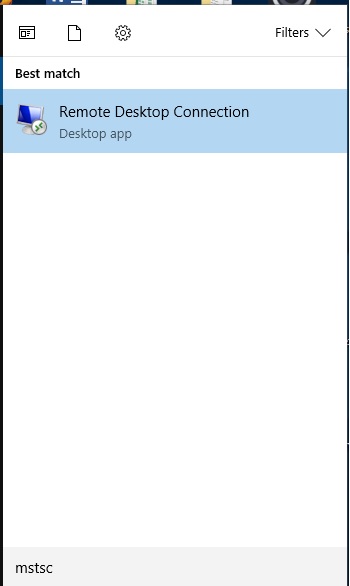
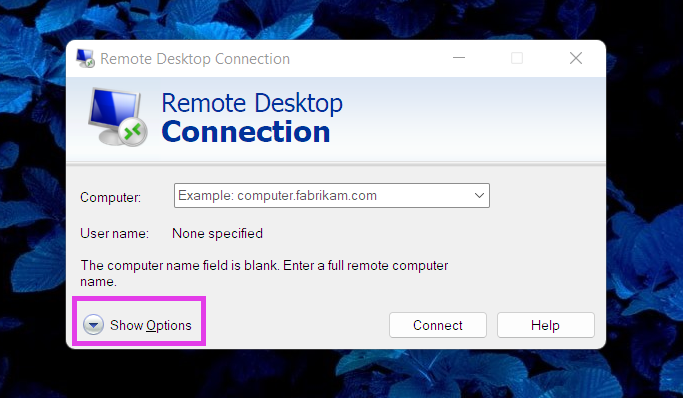
When the remote desktop connection window displays, select the “show option” button in the bottom left corner.
Set the picture size too big so that it fills the screen and the colour quality to 16bit under the “Display” tab.

In the next step, as you can see in the picture, click on the “Experience” tab and set the connection to low-speed broadband (256kbps-2Mbps). After that, disable all the options and enable the “reconnect if the connection is dropped” option.
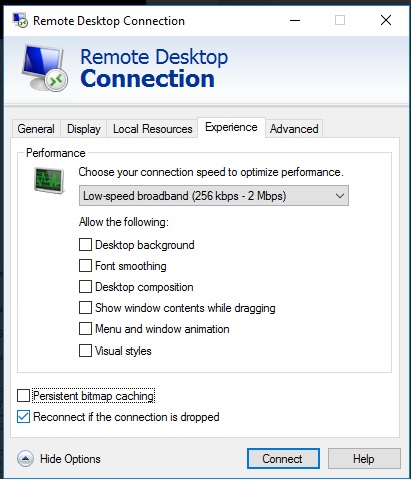
Note: For a better experience, you can keep the Font smoothing option active
Go back to the “General” section and save the applied settings by choosing the “Save As” option.

If you use multiple servers, by choosing a suitable name for each service, reduce the possibility of errors when selecting the relevant server to the minimum possible level.

After saving the applied settings, you can go back to the Remote Desktop Connection window and click the Connect option to connect.
By applying the provided settings to optimize the connection speed to the server, you will lose some attractive images and graphics.
You may improve the quality and security of RDP connections by using these methods, guaranteeing a dependable and efficient remote access experience.


philip Simpson
12 November 2025Do you offer service outside regular hours?
ALis
12 November 2025Yes, our team is 24 x 7 Online Supports.
mr. philip Echols
15 November 2025Can I get a service agreement in writing?
ALis
2 December 2025Yes, you can request a written service agreement at any time. Simply send us your email address or contact us through our website, and we will provide it to you.
Philip Swope
26 November 2025Can I get a copy of your terms and conditions?
ALis
2 December 2025Absolutely. Our Terms and Conditions are available on our website. Please visit the Terms and Conditions page for the complete document
https://www.wilivm.com/terms-and-conditions/
philip Venable
29 November 2025Do you offer any bundled service deals?
ALis
2 December 2025Feel free to reach out to our support or check our website to find the best plan for you. You can contact with support team or live chat .
https://www.wilivm.com/support/
Bobby Marr
2 December 2025Hey! If you’re seeing this, you know it works! Let me blast your ad to millions of websites too. Visit contactformpromotion.com to get started.
ALis
2 December 2025Thanks for your inquiry! 📢
For advertising or sponsored content opportunities, please get in touch via our contact form.
Mr. Phil Krier
9 December 2025Do you offer financing through a third party?
ALis
18 December 2025Thank you for your question. Currently, we do not offer financing through third-party providers. If you have any questions about our payment options or need further assistance, please feel free to contact our support team.