how to turn off windows firewall?
Turn off Windows Firewall only when you understand how it may affect your computer’s security. Windows Firewall monitors network traffic and blocks connections that could pose a risk to your system. If you manage a Windows VPS and need to troubleshoot a connection issue or test a specific application, you may need to disable the firewall temporarily. In this guide, you’ll learn how Windows Firewall works, when disabling it may be necessary, and how to turn it off step by step.
What Is Windows Firewall?
Windows Firewall is a built-in security feature in Microsoft Windows that controls network traffic entering and leaving your computer. It checks connection requests against a set of rules and blocks traffic that does not meet those rules.
For example, if an application tries to accept incoming connections from another device, Windows Firewall can block the request unless a rule allows it. This helps reduce the risk of unauthorized access to your system. Windows Firewall also works alongside other security features, such as Microsoft Defender Antivirus, to protect your computer from different threats.
If you use a Windows VPS, firewall settings can affect remote connections, hosted applications, and services running on the server. Before you turn off Windows Firewall, check whether adjusting a specific rule can solve the problem without disabling network protection entirely.
Why would I need to turn off the firewall on my Windows device?
Why would I want to disable such a crucial security function, you may wonder. Well, there are certain circumstances where you need to momentarily deactivate it. Let’s look at a few of them.
- Network Troubleshootin: The Windows Firewall may sometimes cause issues with network connections. Its disablement may assist in locating and fixing network-related problems.
- Application Installation: For certain apps to install properly, the firewall must be turned off.
- Game and Media Streaming: In rare circumstances, turning off the firewall might enhance media streaming and media performance.
Important note:
Make sure you have administrator rights on your computer before continuing since regular users cannot modify firewall settings.
How do I disable the built-in firewall on my Windows PC?
Are you ready to turn off the firewall? Here is how to go about it.
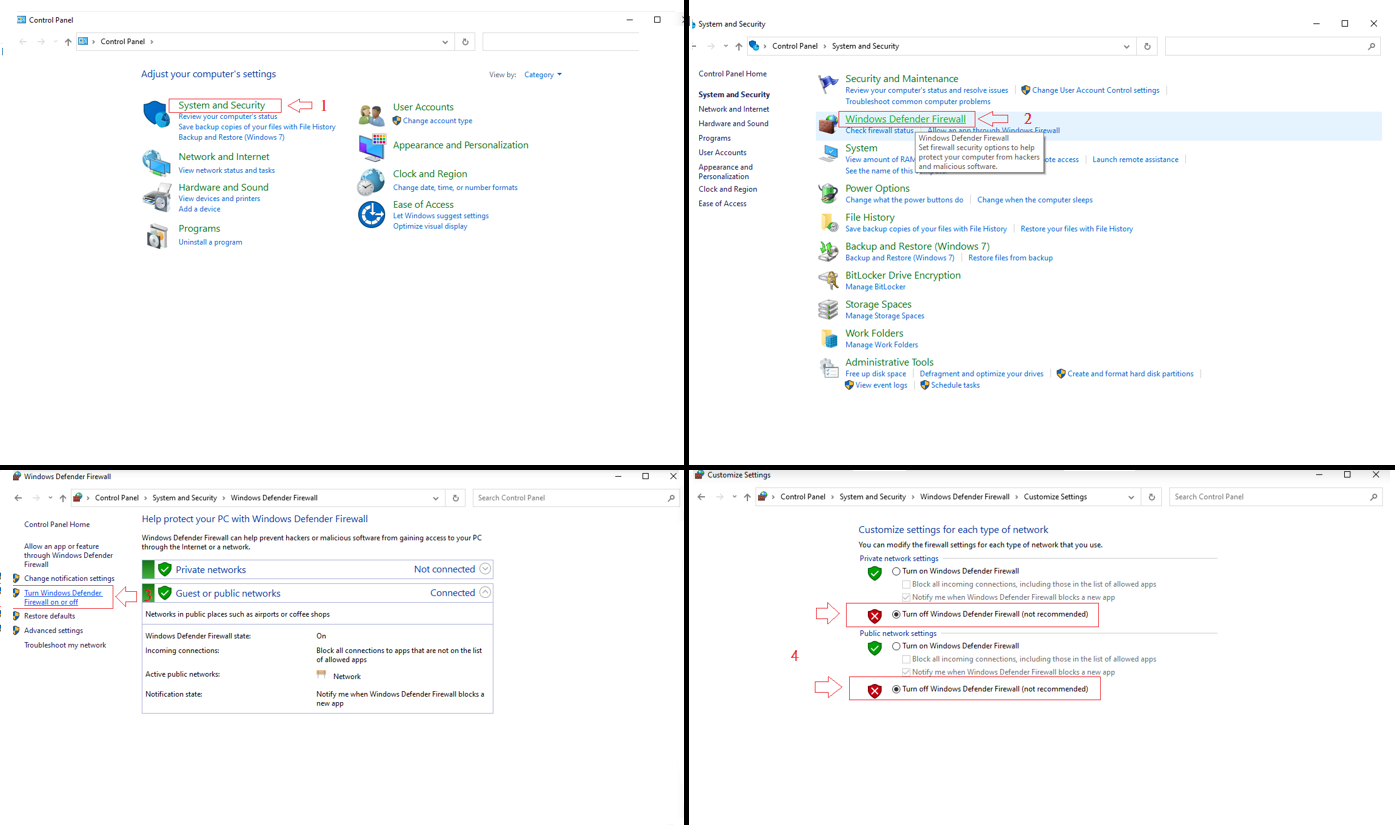
Using Control Panel
- Open the Control Panel.
- Select “System and Security”.
- Click on “Windows Defender Firewall”.
- On the left pane, click on “Turn Windows Defender Firewall on or off”.
- Choose “Turn off Windows Defender Firewall” for both private and public networks.
- Click “OK” to save the changes.
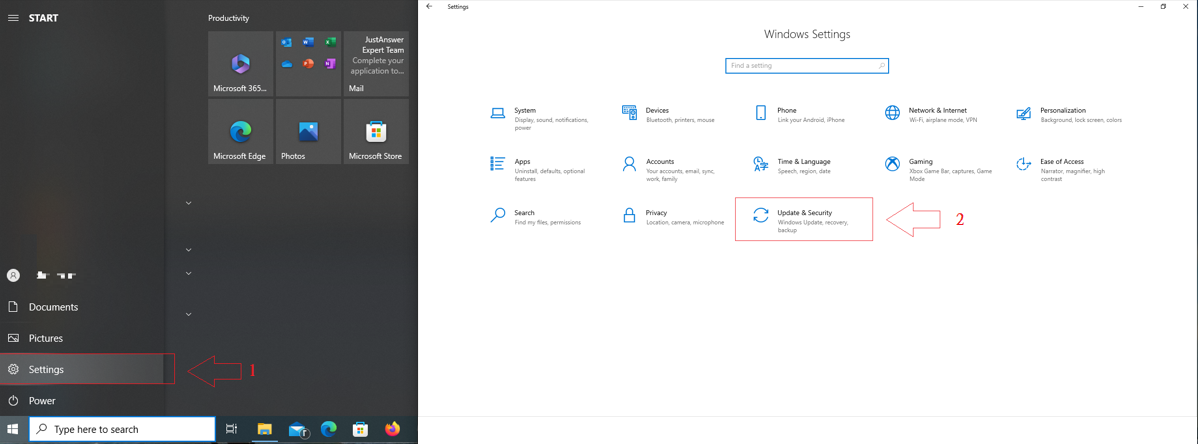
Using Windows Security
- Go to “Settings”.
- Choose “Update & Security”.
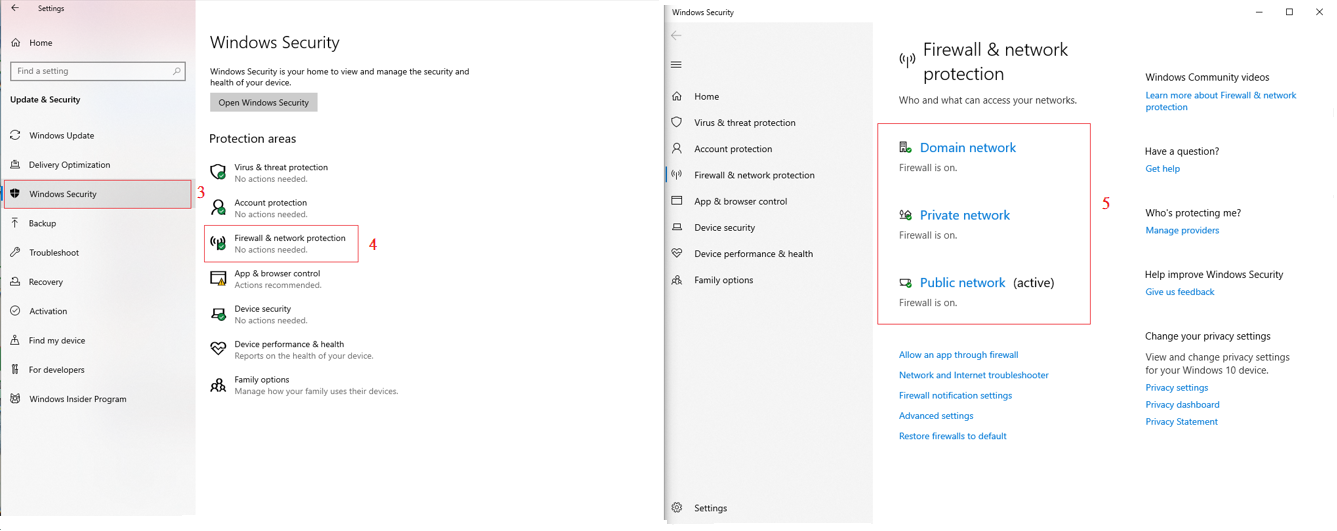
- Select “Windows Security” and click on “Firewall & network protection”.
- Select the network profile, and turn off the Windows Defender Firewall.
How to Disable Windows Firewall for Specific Programs?
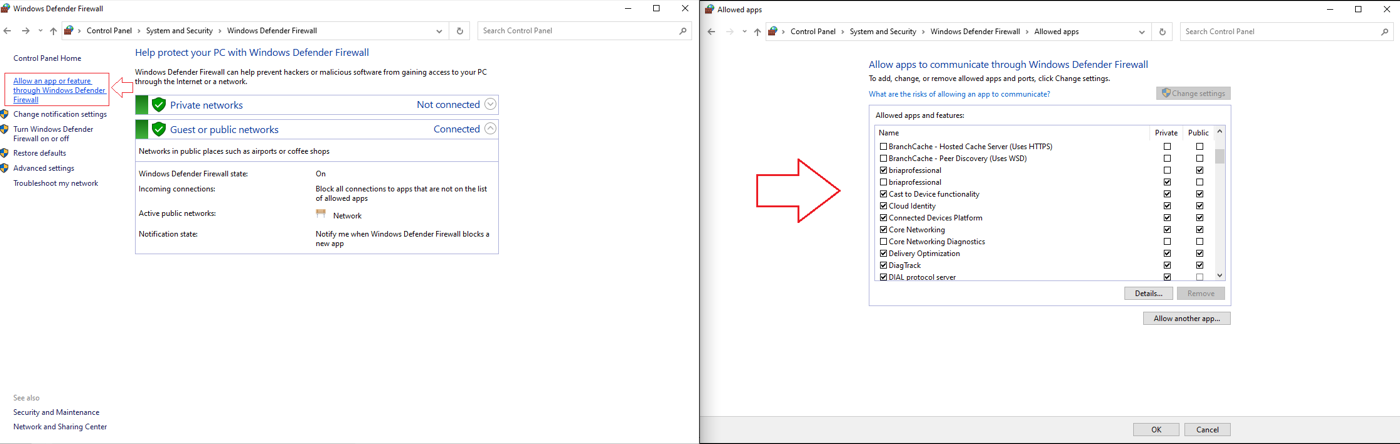
In the “Allowed apps” area of the Windows Firewall settings, you may add exceptions if you want to deactivate the firewall for a particular software.
Potential Risks of Disabling Windows Firewall
Keep in mind that disabling the firewall leaves your machine open to online dangers. Always be sure to restart the firewall as soon as you can or use a trustworthy third-party firewall.
Tips to Maintain PC Security After Disabling Firewall
Using Third-Party Firewalls: When the Windows Firewall is disabled, third-party firewalls may provide an additional degree of security.
Regularly Updating Software: Maintaining the security of your computer begins with keeping your software updated.
Safeguarding Against Phishing Attacks: Be careful while downloading files from untrusted sources or opening emails.
Re-enabling Windows Firewall: When you’re ready, use the same procedures to re-activate the Windows Firewall by choosing “Turn on Windows Defender Firewall”.
Learn how to turn off Windows Firewall like a pro. Buy Windows VPS for seamless control and enhanced security. Act now!
Can I Temporarily Disable the Firewall on Windows Without Affecting Security Settings?
Yes, you can temporarily turn off Windows Firewall without deleting your existing firewall rules or changing your other security settings. When you turn the firewall back on, Windows uses the rules that were in place before you disabled it.
To reduce security risks, disable the firewall only for the time needed to test an application or troubleshoot a network problem. Open Windows Security, go to Firewall & network protection, select the active network profile, and switch Microsoft Defender Firewall off. Once you finish testing, turn it back on.
If a program still cannot connect, consider creating a specific inbound or outbound firewall rule instead. This lets you allow the required traffic while keeping other connections restricted. On a Windows VPS, check your remote access requirements before changing firewall settings, especially if you connect through Remote Desktop (RDP). Disabling the firewall can expose network services and increase the risk of unauthorized access.
Is There a Way to Turn Off the Windows Firewall Using Command-Line Tools?
Yes, you can turn off Windows Firewall using Command Prompt (CMD) or PowerShell. In Command Prompt, run the terminal as an administrator and enter the following command to disable the firewall for all network profiles:
netsh advfirewall set allprofiles state offThis command disables the firewall for the Domain, Private, and Public profiles. To enable it again, run netsh advfirewall set allprofiles state on. You can check the current firewall status with netsh advfirewall show allprofiles state. These commands work on supported versions of Windows and Windows Server. <Cite refs={[“turn779409search1”]}/>
PowerShell provides another option for managing firewall profiles. Open PowerShell as an administrator and run the following command to disable the firewall across all profiles:
Set-NetFirewallProfile -Profile Domain,Private,Public -Enabled FalseTo restore firewall protection, run:
Set-NetFirewallProfile -Profile Domain,Private,Public -Enabled TrueYou can verify the configuration with Get-NetFirewallProfile | Select-Object Name, Enabled. These commands use the NetSecurity module and work on supported Windows client and Windows Server versions. Disabling the firewall removes its network filtering protection, so re-enable it immediately after troubleshooting.
Conclusion
The procedure of turning off the Windows Firewall is simple. To protect the security of your computer, keep in mind the inherent dangers and implement the appropriate security measures.
FAQs
What happens when I disable Windows Firewall?
Disabling the firewall removes the barrier between your computer and the internet, making it more susceptible to cyber threats.
Can I use another firewall while the Windows Firewall is off?
Yes, using a third-party firewall can provide additional protection.
Can I disable the firewall for a specific app?
Yes, you can do this by adding an exception in the "Allowed apps" section in the Windows Firewall settings.
What should I do if I can't disable the Windows Firewall?
If you're having trouble, ensure you have administrative privileges and that your Windows is updated to the latest version.