
Windows Server Core: A Complete 2025 Guide to Features, Commands, and Installation
Windows Server Core is a minimal installation option of Microsoft Windows Server designed to deliver maximum performance, security, and efficiency by removing the traditional graphical user interface. Unlike the Desktop Experience edition, Server Core operates without elements such as File Explorer, Control Panel, or local graphical management tools. This approach allows the operating system to focus entirely on running server roles and workloads rather than visual components.
Server Core was created in response to the increasing complexity of enterprise infrastructures and the growing need for scalable, lightweight server environments. As virtualization, containers, and cloud computing became dominant, organizations required operating systems that could deliver high performance with minimal overhead. Windows Server Core meets this requirement by offering a stripped-down yet powerful platform optimized for modern workloads.
Administrators interact with Server Core primarily through PowerShell, command-line tools, and remote management platforms such as Windows Admin Center. While this may seem challenging at first, it enables greater control, automation, and consistency across large-scale deployments.
Contents
- Windows Server Core 2019, 2022 & 2025: Version Overview
- Windows Server Core Features & Benefits
- Windows Server Core vs Standard (Desktop Experience)
- Windows Server Core Licensing (2022/2025)
- How to Install and Configure Windows Server Core
- Windows Server Core Commands
- Windows Server Core Administration Best Practices
- Unlock Core-Level Efficiency
Windows Server Core 2019, 2022 & 2025: Version Overview
Windows Server Core 2019 introduced major improvements that strengthened its role in modern data centers. Enhanced container support, improved compatibility with Kubernetes, and better integration with Hyper-V made it a strong foundation for virtualization and microservices-based architectures. Security features, such as Shielded Virtual Machines and enhanced credential protection, helped organizations meet stringent compliance requirements.
Windows Server Core 2022 expanded on these capabilities with a strong emphasis on security and hybrid cloud integration. Features such as secured-core server, advanced encryption protocols, and SMB compression improved data protection and network efficiency. Management became more flexible through deeper integration with Azure services, enabling hybrid scenarios where on-premises servers seamlessly connect to cloud infrastructure.
Windows Server Core 2025 represents the future direction of Microsoft’s server ecosystem. It focuses on automation, intelligent management, and cloud-native performance. Improved container optimization, enhanced PowerShell functionality, and deeper AI-assisted administration make Server Core 2025 an ideal choice for enterprises planning long-term infrastructure strategies.
Windows Server Core Features & Benefits
One of the defining features of Windows Server Core is its lightweight architecture. By removing the graphical interface, the operating system uses significantly fewer system resources. This results in faster boot times, lower memory usage, and improved overall performance. These benefits are especially noticeable in virtualization hosts where every resource counts.
Security is another major advantage. Server Core has a smaller attack surface because fewer components are installed. This reduces the number of potential vulnerabilities and minimizes the frequency of security patches. Fewer updates also mean fewer reboots, which directly improves uptime and service availability.
Reliability and stability are also enhanced. With fewer background services running, there is less risk of system conflicts or unexpected failures. Server Core environments are known for their long-term stability, making them suitable for mission-critical workloads.
Automation and scalability are built into the core design. PowerShell allows administrators to automate tasks such as deployment, configuration, monitoring, and maintenance. This aligns perfectly with DevOps practices and Infrastructure as Code methodologies, enabling consistent and repeatable server management.
Windows Server Core vs Standard (Desktop Experience)
The difference between Windows Server Core and Windows Server Standard with Desktop Experience lies primarily in how they are managed and how many resources they consume. Server Core operates without a graphical interface, while the Desktop Experience includes a full GUI similar to a traditional Windows desktop.
From a performance perspective, Server Core is faster and more efficient. It consumes less CPU, memory, and disk space, allowing more resources to be allocated to applications and virtual machines. The Desktop Experience edition requires additional resources to support graphical components.
Security considerations strongly favour Server Core. With fewer installed features, the system has fewer potential entry points for attackers. Desktop Experience servers have a larger attack surface due to the presence of additional services and applications.
In terms of use cases, Server Core is ideal for data centers, container platforms, Hyper-V hosts, and cloud infrastructure. The Standard Desktop Experience edition is better suited for environments where administrators require local GUI access or where legacy applications depend on graphical components.
Windows Server Core Licensing (2022/2025)
Windows Server Core follows the same licensing model as other Windows Server editions. Licensing is based on physical CPU cores rather than the installation type. There is no separate or discounted license specifically for Server Core.
However, Server Core often results in a lower total cost of ownership. Its reduced resource requirements allow organizations to maximize hardware utilization. More virtual machines can be run on the same host, reducing the need for additional servers.
Windows Server Core 2022 and 2025 are available in both Standard and Datacenter editions. The Standard edition is suitable for smaller deployments with limited virtualization needs, while the Datacenter edition is designed for large-scale environments requiring unlimited virtualization rights and advanced features.
How to Install and Configure Windows Server Core
Step 1: Preparing the Installation Media
The first step is to download the official Windows Server ISO file for the desired version, such as Windows Server Core 2019, 2022, or 2025, from Microsoft. After downloading the ISO, create a bootable USB drive for physical servers or mount the ISO file directly to a virtual machine if you are installing on Hyper-V, VMware, or another virtualization platform.
Once the installation media is ready, configure the server or virtual machine to boot from the ISO or USB device and start the system.
Step 2:Starting Windows Server Setup
After booting from the installation media, the Windows Server setup environment loads. At this stage, select the preferred language, time and currency format, and keyboard layout. These settings can be changed later, but selecting the correct values now ensures consistency.
Click Install Now to begin the setup process.
Step 3: Selecting the Correct Server Core Edition
When prompted to choose the Windows Server edition, select the correct version, such as Windows Server 2022 Standard or Datacenter. It is critical to choose the option labelled Server Core Installation. Choosing Desktop Experience will install the full graphical interface, which is not intended for Server Core environments.
After selecting the edition, confirm the choice and proceed.
Step 4: Accepting License Terms and Disk Selection
Read and accept the Microsoft license terms to continue. Next, choose the Custom installation option. This allows you to select the target disk and manage partitions.
Choose the appropriate disk, create or format partitions if necessary, and confirm the selection. The installation process will begin copying system files and configuring the operating system automatically.
Step 5: Setting the Administrator Password
Once installation is complete, the server restarts and prompts you to set a password for the local Administrator account. This password must meet complexity requirements and should be strong and secure.
After setting the password, log in using the Administrator account. You will now see a command-line interface instead of a graphical desktop.
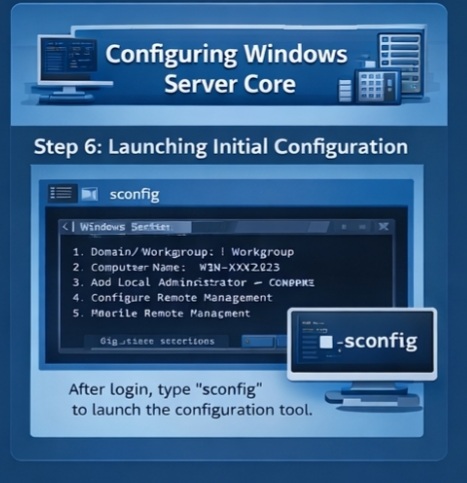
Step 6: Launching Initial Configuration
After logging in, Windows Server Core automatically opens the Server Configuration tool. If it does not open, it can be launched manually by typing the following command and pressing Enter.
sconfig
This text-based configuration menu is used for most initial setup tasks.
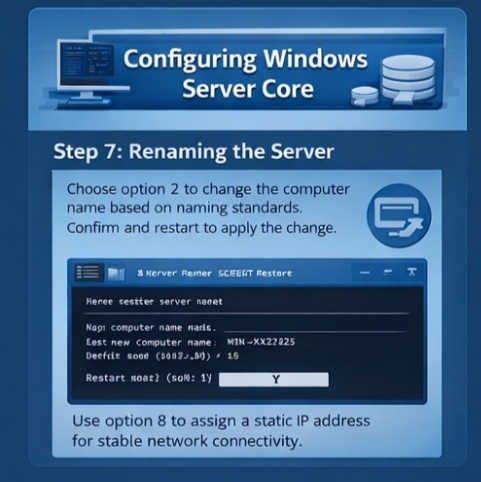
Step 7: Renaming the Server
From the configuration menu, choose the option to change the computer name. Enter a meaningful server name based on your organization’s naming standards.
After confirming the new name, the system prompts for a restart. Restart the server to apply the change.
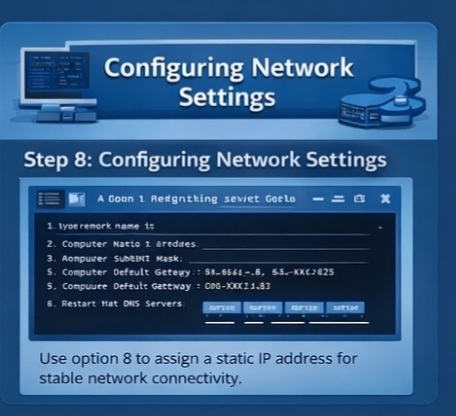
Step 8: Configuring Network Settings
Once the server restarts, open the configuration tool again using the sconfig command. Select the network settings option and choose the active network adapter.
Assign a static IP address by entering the IP address, subnet mask, default gateway, and DNS servers. Static IP configuration is recommended for servers to ensure stable network connectivity.
Alternatively, network configuration can be done using PowerShell.
New-NetIPAddress -InterfaceAlias “Ethernet” -IPAddress 192.168.1.10 -PrefixLength 24 -DefaultGateway 192.168.1.1
Set-DnsClientServerAddress -InterfaceAlias “Ethernet” -ServerAddresses 8.8.8.8,8.8.4.4
Step 9: Joining the Server to a Domain
If the server is part of an Active Directory environment, it should be joined to the domain. From the configuration menu, select the domain or workgroup option and enter the domain name.
Provide domain administrator credentials when prompted. After successful authentication, restart the server to complete the domain join process.
PowerShell alternative command.
Add-Computer -DomainName example.local -Credential example\Administrator -Restart

Step 10: Enabling Remote Management
Remote management is essential for Windows Server Core because local graphical tools are not available. Remote management is usually enabled by default, but it should be verified.
From the configuration menu, ensure remote management is enabled. This allows the server to be managed using Windows Admin Center, PowerShell Remoting, and Remote Server Administration Tools.
To enable PowerShell Remoting manually, run the following command.
Enable-PSRemoting -Force

Step 11: Installing Server Roles and Features
After basic configuration, install the required server roles based on the server’s purpose. Common roles include Hyper-V, DNS, DHCP, File Services, and Active Directory Domain Services.
To install Hyper-V using PowerShell, run the following command.
Install-WindowsFeature -Name Hyper-V -IncludeManagementTools -Restart
To install Active Directory Domain Services.
Install-WindowsFeature AD-Domain-Services -IncludeManagementTools
After installing roles, additional configuration may be required depending on the role.

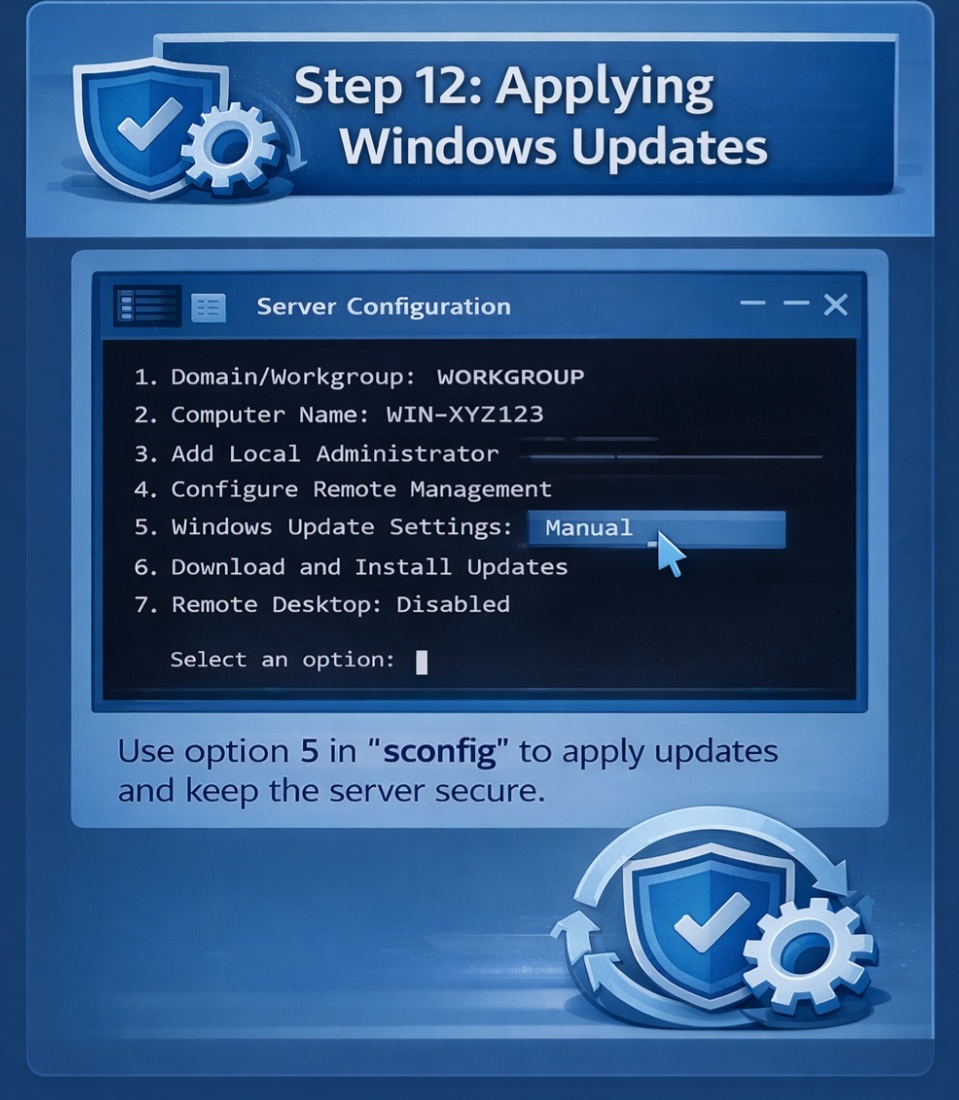
Step 12: Applying Windows Updates
Keeping Windows Server Core updated is critical for security and stability. Updates can be installed using PowerShell or centralized update services.
To check for updates using PowerShell.
sconfig
Select the update option and choose automatic or manual update installation.
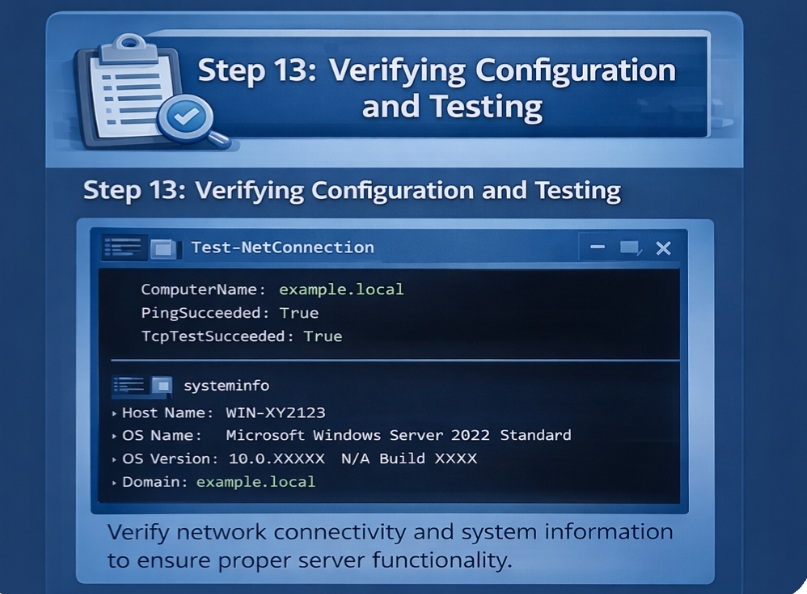
Step 13: Verifying Configuration and Testing
After completing installation and configuration, verify that the server is functioning correctly. Test network connectivity using ping commands, confirm that installed roles are running, and ensure remote access works properly.
Test-NetConnection
Check system information.
systeminfo
Once verification is complete, the Windows Server Core system is ready for production workloads
Windows Server Core App Compatibility & GUI Options
Despite the lack of a traditional GUI, Windows Server Core supports a wide range of enterprise applications. Many Microsoft products, such as SQL Server, IIS, and Hyper-v are fully compatible with Server Core.
For applications that require some level of graphical management, remote tools provide an effective solution. Windows Admin Center, Remote Desktop Services, and PowerShell Remoting allow administrators to manage Server Core systems efficiently from other machines.
Organizations often adopt a hybrid approach, using Server Core for infrastructure roles and Desktop Experience servers only where necessary. This strategy balances efficiency with compatibility.
Windows Server Core Commands
PowerShell is the primary management tool for Windows Server Core. It provides comprehensive control over system configuration, services, networking, and security. Administrators can manage users, install roles, monitor performance, and automate maintenance tasks using scripts.
Command-line management enables repeatable and scalable administration. As environments grow, automation becomes essential, and Server Core is designed to support this approach from the ground up.
Windows Server Core Administration Best Practices
Successful administration of Windows Server Core requires a shift in mindset from manual management to automation-driven operations. Remote management should always be preferred over local access to improve security.
Standardizing configurations through scripts ensures consistency across servers. Regular monitoring, logging, and proactive maintenance help prevent issues before they impact production workloads.
Security best practices include limiting administrative access, applying updates regularly, and using secure authentication methods. Because Server Core requires fewer updates, maintenance windows are easier to manage.
Unlock Core-Level Efficiency
Windows Server Core represents the future of efficient server infrastructure. Eliminating unnecessary components, it allows organizations to focus resources on performance, scalability, and security.
Whether running Hyper-V, Docker containers, or hybrid cloud workloads, Server Core delivers a reliable and optimized platform. It is particularly well-suited for enterprises and service providers that demand high availability and low operational overhead.
For those looking to deploy Windows Server Core in a fast, secure, and globally accessible environment, 1 Gbps provides an ideal solution. With instant Windows VPS deployment, global data centers, 24/7 technical support, and competitive pricing, businesses can scale effortlessly while leveraging the full power of Server Core.