Windows Server Hyper V 2025: Complete Guide to Virtualization & Deployment
Virtualization is one of the most foundational technologies in modern IT infrastructure. As organizations increasingly adopt cloud-first and hybrid IT strategies, the ability to run multiple isolated workloads on shared physical hardware is no longer optional; it is a strategic requirement. Virtualization reduces capital and operational costs, improves scalability, increases service availability, and enables faster deployment of applications and services.
Microsoft Hyper-V, built natively into Windows Server, is a mature, enterprise-grade virtualization platform trusted by organizations worldwide. With Windows Server 2022 and the upcoming Windows Server 2025, Hyper-V delivers major improvements in security, performance, automation, and hybrid cloud integration. These advancements make Hyper-V a strong competitor to other enterprise virtualization platforms while remaining tightly integrated with the Microsoft ecosystem.
This in-depth guide is written specifically for website publication and SEO performance. It explains everything you need to know about Windows Server Hyper-V—from core concepts and architecture to installation, licensing, best practices, security, and real-world deployment scenarios.
Contents
- What Is Windows Server Hyper-V?
- What’s New in Windows Server 2022 and 2025 Hyper-V
- How to Install Windows Server Hyper-V (Step by Step)
- Hyper-V Licensing and Edition Comparison
- Hyper-V Architecture Explained
- Core Hyper-V Features
- Security and Compliance in Hyper-V
- Best Practices and Common Mistakes
- Real-World Hyper-V Use Cases
- Why Upgrade to Hyper-V on Windows Server 2025?
What Is Windows Server Hyper-V?
Windows Server Hyper-V is Microsoft’s native Type-1 (bare-metal) hypervisor that enables organizations to create and manage virtual machines (VMs) on x86-64 hardware. Because Hyper-V runs directly on physical hardware rather than on top of a host operating system, it provides near-native performance, strong isolation, and enhanced security compared to Type-2 hypervisors.
Each virtual machine runs in a completely isolated environment with its own virtual CPU, memory, storage, firmware, and network adapters. This isolation ensures that performance issues, system failures, or security incidents in one VM do not impact other virtual machines on the same host.
The Role of Hyper-V in Modern IT Environments
Hyper-V is widely used across enterprise, SMB, and service-provider environments. Common use cases include:
- Server consolidation to reduce physical hardware and energy costs
- Hosting business-critical and high-availability applications
- Building private cloud and hybrid cloud infrastructures
- Running legacy applications alongside modern workloads
- Creating development, testing, staging, and training environments
- Supporting DevOps pipelines, CI/CD workflows, and automation
Because Hyper-V is deeply integrated with Windows Server, it is especially attractive to organizations that rely on Microsoft technologies such as Active Directory, SQL Server, System Center, and Microsoft Azure.
What’s New in Windows Server 2022 and 2025 Hyper-V
Recent Windows Server releases introduce significant improvements to the Hyper-V platform, with a strong focus on security, scalability, and cloud integration.
Key enhancements include:
- Advanced nested virtualization for cloud-native development and DevOps scenarios
- Virtual Trusted Platform Module (vTPM) for VM-level encryption and compliance
- Shielded Virtual Machines to protect sensitive workloads from unauthorized host access
- Improved virtual networking throughput with lower latency
- Better performance and stability for high-density VM deployments
- Deeper integration with Azure Arc and hybrid cloud management tools
Windows Server 2025 continues this evolution by strengthening zero-trust security models, improving resource scheduling, and enhancing automation and monitoring capabilities for large-scale environments.
How to Install Windows Server Hyper-V (Step by Step)
Installing Hyper-V is a straightforward process, but proper planning and preparation are essential to ensure optimal performance and long-term stability. Before installation, administrators should confirm that server hardware, firmware, and BIOS/UEFI settings fully support virtualization.
Hardware Requirements
- 64-bit processor with Second Level Address Translation (SLAT)
- CPU virtualization support (Intel VT-x or AMD-V)
- Hardware-enforced Data Execution Prevention (DEP)
- Minimum 4 GB of RAM (16 GB or more recommended for production workloads)
- High-performance storage, such as SSD or NVM,e for virtual machines
Software Requirements
- Windows Server 2022 or Windows Server 2025
- Standard or Datacenter edition
- Administrative access to the server
- Virtualization enabled in BIOS or UEFI firmware
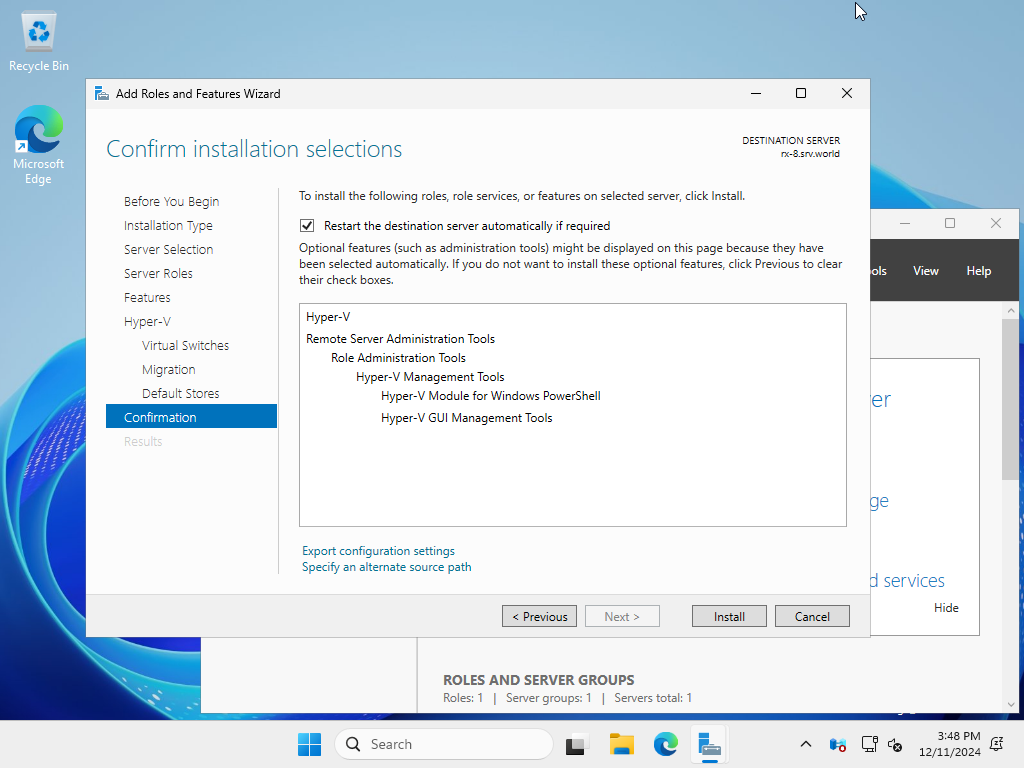
Installing Hyper-V Using Server Manager
Server Manager provides a graphical installation method suitable for most administrators
1. Open Server Manager from the Start administration
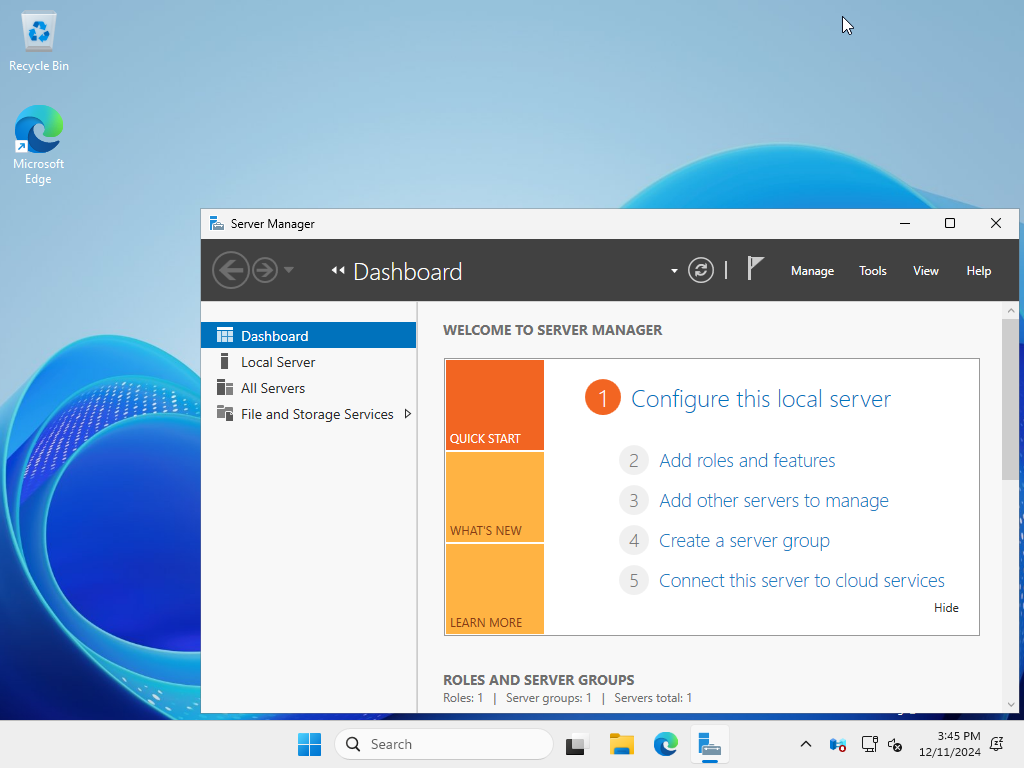
2. Select Manage and click Add Roles and Features
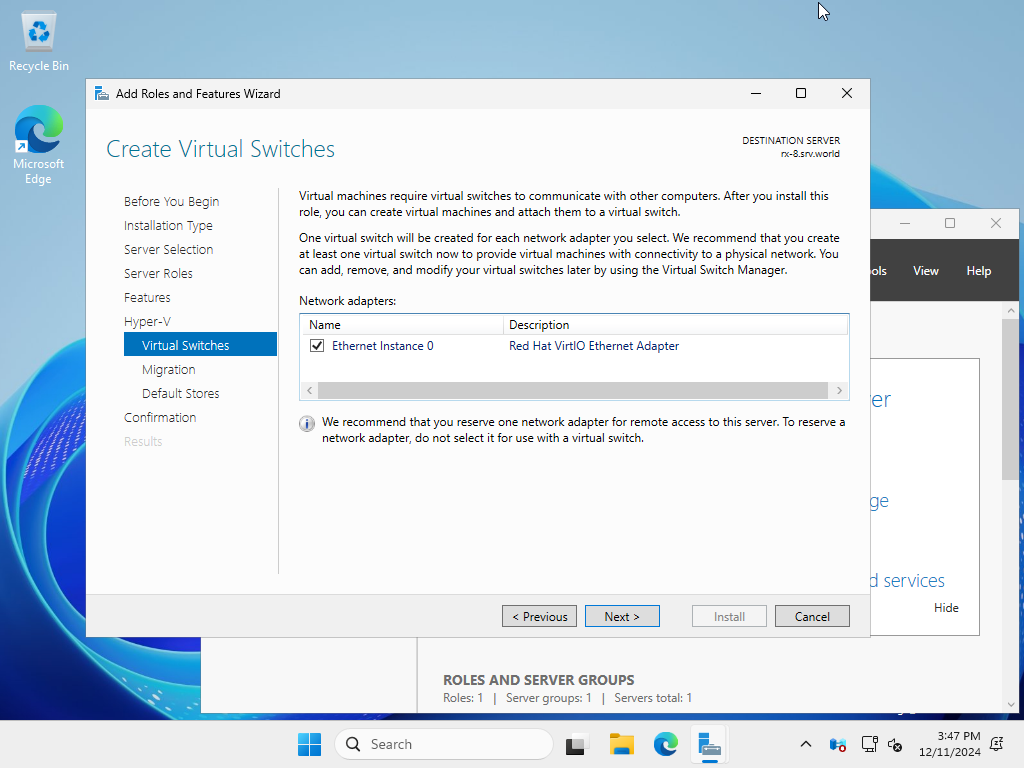
3. Choose Role-based or feature-based installation
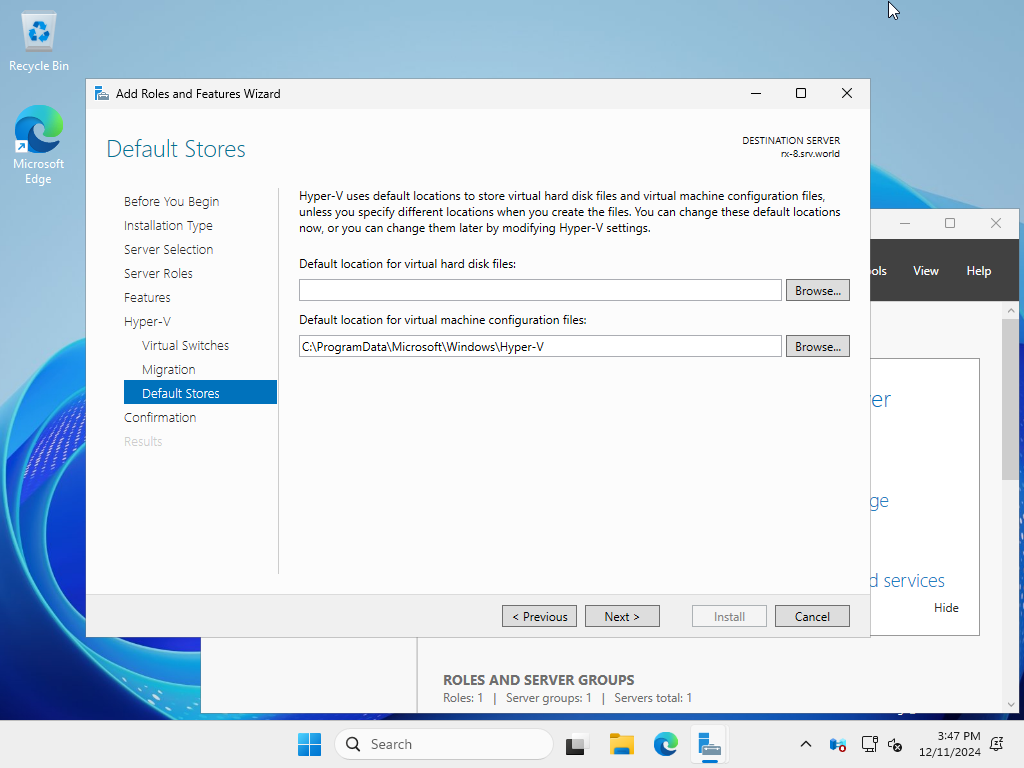
4. Select the local server
5. Enable the Hyper-V role
6. Add required management tools when prompted
7 . Configure virtual switches if networking is required
8. Review your selections and begin the installation
9. Restart the server when installation completes
Installing Hyper-V Using PowerShell
PowerShell is ideal for automation, scripting, and remote deployments:
Install-WindowsFeature -Name Hyper-V -IncludeManagementTools -Restart
This command installs the Hyper-V role, enables management tools, and automatically restarts the server.
Hyper-V Licensing and Edition Comparison
Licensing is one of the most misunderstood aspects of Hyper-V deployments. While Hyper-V itself is included with Windows Server at no additional cost, virtualization rights depend entirely on the Windows Server edition installed on the host.
Windows Server Standard Edition
Windows Server Standard is designed for lightly virtualized environments:
- Allows up to two Windows Server virtual machines per license
- Suitable for small businesses and branch offices
- Additional licenses are required to run more than two VMs
Windows Server Datacenter Edition
Windows Server Datacenter is designed for highly virtualized and enterprise environments:
- Allows unlimited Windows Server virtual machines
- Includes advanced features such as Storage Spaces Direct and Software-Defined Networking
- Ideal for private cloud, enterprise, and data center deployments
Choosing the correct edition is critical for licensing compliance, scalability, and long-term cost optimization.
Hyper-V Architecture Explained
Hyper-V uses a layered architecture that separates physical hardware access from virtual workloads:
- The hypervisor layer manages CPU scheduling and memory allocation
- The parent partition runs Windows Server and handles VM management
- Child partitions host individual virtual machines
- Virtual switches provide network connectivity
- Virtual storage relies on VHD and VHDX disk formats
This architecture ensures strong isolation, system stability, and near-native performance for virtualized workloads.
Core Hyper-V Features
Hyper-V includes a comprehensive set of enterprise-grade features:
- Live Migration to move running VMs with zero downtime
- Checkpoints for capturing VM states during updates or testing
- Dynamic Memory for efficient RAM utilization
- Hyper-V Replica for disaster recovery and site replication
- Secure Boot and virtual TPM for enhanced security
- Generation 2 virtual machines with UEFI firmware
- Failover Clustering for high availability
Security and Compliance in Hyper-V
Security is a central focus of modern Hyper-V deployments. Features such as Shielded Virtual Machines, Secure Boot, BitLocker integration, and vTPM help organizations meet strict compliance requirements and protect sensitive workloads.
Hyper-V also supports role-based access control, auditing, and seamless integration with Active Directory and Azure security services, making it suitable for regulated industries such as finance and healthcare.
Best Practices and Common Mistakes
Best Practices for Hyper-V Deployments
- Use high-speed storage such as SSD or NVMe
- Separate management, VM, and storage network traffic
- Keep Windows Server and Hyper-V fully updated
- Use Generation 2 VMs whenever possible
- Continuously monitor CPU, memory, disk, and network performance
- Implement regular backup, snapshot, and replication strategies
Common Mistakes to Avoid
- Overcommitting physical resources
- Ignoring Windows Server licensing rules
- Running production workloads without reliable backups
- Disabling security features for convenience
- Deploying Hyper-V on unsupported or underpowered hardware
Real-World Hyper-V Use Cases
Hyper-V is used across a wide range of industries, including finance, healthcare, education, and manufacturing. Common scenarios include virtual desktop infrastructure (VDI), private cloud platforms, development and test labs, and mission-critical production systems.
Why Upgrade to Hyper-V on Windows Server 2025?
As workloads grow and cyber threats become more sophisticated, upgrading your virtualization platform is essential. Hyper-V on Windows Server 2022 and 2025 provides a secure, scalable, and future-ready foundation for:
- Enterprise data centers
- Hybrid cloud environments
- DevOps and automation platforms
- Mission-critical production workloads
Organizations that invest in modern Hyper-V infrastructure benefit from reduced downtime, improved security posture, and long-term operational efficiency.