Recover Files from Corrupted Windows or Linux VPS
When a Virtual Private Server (VPS) suddenly fails to boot, the immediate concern for most administrators and businesses is data loss. Files, databases, customer information, and application data may appear unreachable, but in many cases, they are still intact on the virtual disk. This comprehensive guide explains how to recover files from a corrupted VPS in a safe, structured, and professional way.
Contents
- How to Recover Files from a Corrupted VPS
- Recovering Files from Linux VPS
- Identifying Your Linux Partition
- 1. Mounting Linux Filesystems
- Accessing Your Files
- Accessing Your Files (Windows VPS)
- NTFS Partition Shows as Dirty
- Wrong Partition Device
- Permission Denied Errors
- Filesystem Corruption Too Severe
- Why VPS Corruption Happens
- Alternative File Transfer Methods
- Preventing VPS Data Loss
- Power Protection and Testing Recovery Procedures
How to Recover Files from a Corrupted VPS
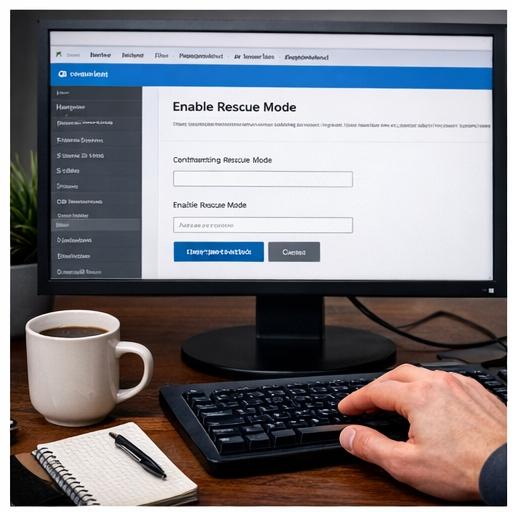
A corrupted VPS usually means the operating system cannot load properly. Common symptoms include boot loops, blue screens, kernel panics, or the VPS getting stuck at the loading stage. While this situation is stressful, it does not automatically mean your data is lost.
Most VPS providers offer a Rescue Mode or Recovery Environment. This is a temporary operating system, usually Linux‑based, that boots independently from your main VPS disk. Once enabled, it allows you to attach your original disk as a secondary drive and access its contents in read‑only mode. From there, files can be copied to your local computer or another server.
The recovery process generally follows these stages:
- Confirming that the VPS truly cannot boot
- Activating rescue mode from the control panel
- Identifying the correct disk and partition
- Mounting the filesystem safely
- Accessing and transferring files
- Disabling rescue mode and rebuilding the VPS
Each of these stages is explained in detail in the sections below.
Recovering Files from Linux VPS
Linux VPS recovery is often more flexible than Windows recovery because Linux filesystems integrate naturally with rescue environments. If your Linux VPS fails to boot due to configuration errors, failed updates, or disk issues, rescue mode is usually the fastest way to retrieve your data.
Once the VPS boots into rescue mode, the system runs independently of your damaged Linux installation. Your original disk appears as an unmounted device. At this stage, no data has been changed, which is critical for preventing further corruption.
Linux VPS recovery is commonly used for:
- Restoring website files from Apache or Nginx directories
- Recovering database files from MySQL or PostgreSQL data folders
- Copying user home directories
- Extracting configuration files before reinstalling the OS
Because rescue mode uses Linux, it can also access Windows disks formatted with NTFS, making it suitable for mixed environments.
Identifying Your Linux Partition
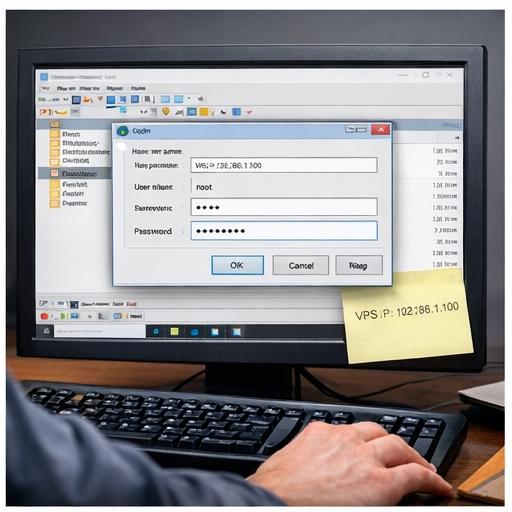
Before accessing files, you must correctly identify which disk and partition contain your data. VPS servers often use virtual disks with names that do not clearly indicate their purpose.
Common scenarios include:
- A single disk with one main partition
- Multiple partitions for root, home, and swap
- Additional attached storage volumes
In rescue mode, disks are listed as virtual block devices. The main data partition is usually the largest one and often formatted with filesystems such as ext4, xfs, or btrfs.
Correct identification is essential. Mounting the wrong partition may result in empty directories or permission errors, leading users to believe their data is missing when it is not.
Key indicators of the correct partition include:
- Large size compared to others
- Filesystem type associated with Linux
- Presence of familiar directory structures such as user folders or application directories
1. Mounting Linux Filesystems
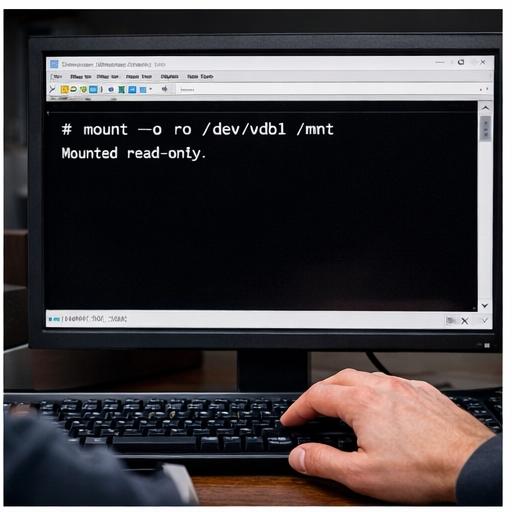
After identifying the correct partition, the next step is mounting it so the rescue system can access the files. Mounting connects the filesystem to a directory within the rescue environment.
Best practices for mounting during recovery include:
- Using read‑only mode to prevent accidental changes
- Choosing a clean mount directory
- Verifying the mount before transferring data
Read‑only mounting is strongly recommended. It protects the filesystem from further damage and ensures forensic‑level safety during recovery.
Once mounted, the original VPS disk behaves like an external drive connected to the rescue system. All files and folders become accessible for browsing and copying.
Accessing Your Files
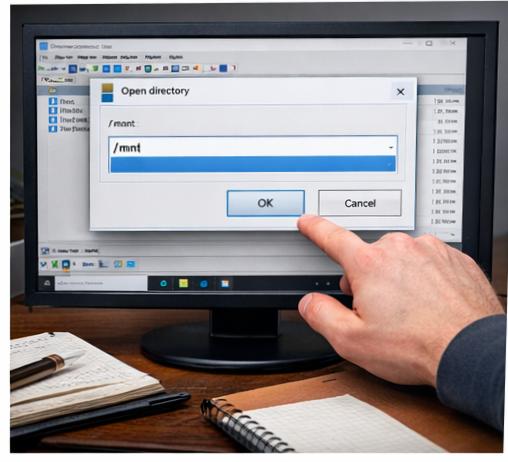
After mounting the disk, you can begin browsing your files. This step is where most users feel relief, as they can visually confirm that their data still exists.
For Linux VPS servers, common file locations include:
- User home directories containing personal files
- Web server roots containing website content
- Application directories with logs and assets
- Database storage paths
Using a graphical file transfer client or the built‑in file browser of the rescue system makes navigation easier, especially for large directory structures.
At this stage, do not rush. Carefully identify which files are essential before transferring them. Large backups or unnecessary system files can significantly increase transfer time.
Accessing Your Files (Windows VPS)

Windows VPS recovery follows a similar logic but with different filesystem structures. Windows disks are typically formatted with NTFS and contain familiar directories such as Users, Program Files, and Windows.
When accessed from a Linux‑based rescue mode, the Windows disk is still readable. User data is usually stored under the Administrator or specific user profile directories.
Common Windows file locations include:
- Desktop folders
- Documents and Downloads directories
- Application data directories
- Custom storage folders created by the user
Because Windows permissions differ from Linux, files may appear owned by unknown users, but they are still fully recoverable.
NTFS Partition Shows as Dirty
A common issue during Windows VPS recovery is the NTFS partition being marked as dirty. This means Windows was not shut down properly, and the filesystem expects a consistency check.
When a partition is dirty:
- The rescue system may refuse to mount it normally
- Read‑only access is still usually possible
- Data is typically intact
This condition does not mean the disk is damaged. It simply indicates that Windows needs a repair check, which can be performed after reinstalling the OS.
During recovery, avoid forcing write access to a dirty NTFS partition, as this can cause further corruption.
Wrong Partition Device
Mounting the wrong partition is a frequent mistake, especially on VPS servers with multiple virtual disks.
Symptoms of mounting the wrong device include:
- Empty directories
- Missing user files
- Unexpected filesystem types
If this happens, do not panic. Unmount the partition and carefully re‑identify the correct disk. Always double‑check sizes and filesystem types before proceeding.
Permission Denied Errors

Permission errors can occur even in rescue mode, especially when accessing Linux files created by restricted users or services.
These errors do not mean the files are inaccessible. They are usually related to ownership and access control. Rescue environments typically allow administrative access that bypasses standard user restrictions.
Using proper privileges within the rescue system resolves most permission issues and allows full file recovery.
Filesystem Corruption Too Severe
In rare cases, filesystem corruption may be severe enough that files cannot be accessed normally. This can result from:
- Sudden power loss during disk writes
- Hardware failures on the host node
- Repeated forced reboots
Even in these cases, partial recovery is often possible. Specialized filesystem repair or recovery tools may extract critical data, though filenames or directory structures may not always be preserved.
Why VPS Corruption Happens
Understanding why VPS corruption occurs helps prevent future incidents. Common causes include:
- Improper shutdowns or forced reboots
- Disk space exhaustion
- Failed operating system updates
- Hardware issues on the virtualization host
- File system bugs or driver conflicts
While VPS providers maintain the infrastructure, the operating system inside the VPS is usually the user’s responsibility.
Alternative File Transfer Methods
While graphical tools are popular, they are not the only way to recover files. Alternative transfer methods include:
FileZilla
FileZilla supports secure file transfer between local systems and servers. It works well with rescue mode environments that allow secure connections.
Command Line Tools
Native command-line utilities allow direct copying between mounted disks and remote storage locations. These tools are efficient for large datasets.
Native File Managers
Some rescue environments provide web‑based or graphical file managers, making file selection and downloads easier for non‑technical users.
Preventing VPS Data Loss
Prevention is always better than recovery. Key strategies include:
Regular Backups
Automated backups ensure that data can be restored quickly, even if the VPS is completely unrecoverable.
Filesystem Monitoring
Monitoring disk health, usage, and errors can detect issues before they cause system failure.
Power Protection and Testing Recovery Procedures
Power Protection
Although VPS servers run on professional infrastructure, sudden host‑level power issues can still occur. Choosing providers with redundant power systems reduces risk.
Testing Recovery Procedures
Regularly testing recovery processes ensures that when a real failure occurs, you already know how to respond. This includes verifying backup integrity and practicing rescue mode access.
Conclusion
Recovering files from a corrupted VPS is a manageable process when approached correctly. By using rescue mode, carefully identifying and mounting disks, and transferring data safely, you can minimize downtime and prevent permanent data loss. With proper prevention strategies in place, future VPS failures can be handled calmly and efficiently.